Tampilkan postingan dengan label Free Internet. Tampilkan semua postingan

Sabtu, 01 September 2018

BlueVPN : Free Internet Setup for Globe, TM, Smart, TNT and Sun

BlueVPN Free VPN in the Philippines

BlueVPN is one of the most popular free vpn service in the Philippines. According to their website, "BlueVPN provides a secure environment for everyday web use. Once you establish a VPN connection all of your online data (emails, instant messages, data transfers, online banking) pass through our encrypted tunnel."

BlueVPN has the following features : DDOS Protection, Secure Transactions, Unlimited Internet, Stops Phishing Attack, Stay Anonymous, Easy To Use, 24x7x365 Support, Unblock Websites, Stops Malware, Download Torrents and Videos From Anywhere.

BlueVPN offers two free servers with free account. You can use BlueVPN for free internet or anonymity purposes. But this post will discuss on how to use BlueVPN to bypass Philippine ISPs for free internet.

If you want to see other VPN tutorials. See List of Free VPN tutorials.

How to setup BlueVPN for Free Internet (Globe/TM, Smart/TNT and Sun Cellular)

Requirements:
General Requirement
* Must have one of the following SIM card: Globe, TM, Smart, TNT or Sun Cellular
For PC Users
* PC/Laptop (Windows OS - Win XP, 7, 8 or 10)
* Pocket Wifi/USB-Stick Modem/B593 Modem openline/B22 modem/OT350 Ultera modems/Tether-Hotspot mobile/936 modem
For Mobile Users
Android device or iOS (iPhone) 3G/4G/LTE capable with SIM card slot

BlueVPN Client Download:
Visit and join BlueVPN FB group page (https://www.facebook.com/groups/BluevpnOfficialPage/)
To download the specific bluevpn client for your device, use the FB groups' search function and input the keyword of your device:
"PC/Laptop" - if you are using computer or laptop with USB dongle, Pocket WiFi or 936 Modem as mode of connection.
"ANDROID" - if you are using Android phone or device with a sim slot.
"IOS" - if you are using iPhone.

Find the latest client which is usually placed on the latter part of each platforms.

These are the 2018 BlueVPN Clients according to each platforms:
PC/Laptop - SVL Injector - with .svi configs
Android - KPN Revolution - with .ktr configs

These are the 2017 BlueVPN Clients according to each platforms:
FOR PC/Laptop - BlueVpn Gui v5.0 - with Shadowsocks servers
FOR ANDROID PHONES ONLY - BlueVpn Android apk v8.0 or BlueVPNSSv1.0.apk for Android (SHADOWSOCKS)
FOR IOS/ANDROID(OPENVPN CONNECT) - BlueVpn iOS/Android - TNT/TM Promos, MGC w/ VIP servers v2.4

BlueVPN FREE ACCOUNT:

Update: BlueVPN doesn't offer free account now. You must avail a premium account.
Visit and join BlueVPN Official Facebook Group Page to find legit resellers
https://www.facebook.com/groups/BluevpnOfficialPage

APN Setup:
For Globe/TM (Luzon/Visayas/Mindanao):
APN : http.globe.com.ph
APN : www.globe.com.ph (no load required but expect a slow internet speed due to speed capping).

For TNT (Luzon/Visayas/Mindanao):
APN : internet

For Sun Cellular (Luzon/Visayas/Mindanao):
APN : mms

For Smart (Visayas/Mindanao):
APN : internet

REGISTER to a Promo according to your sim:

Instructions:
This instruction is for BlueVPN GUI only.
1. Plugin your favorite modem and configure APN first, edit your APN according to your chosen network (please refer to the list of networks APN posted above).
2. Connect your modem, or open the Mobile Data of your smartphone.
3. Download and run BlueVPN Client. Look for 'Install Adapter' for PC users only.
4. Now, enter BlueVPN free account. (please refer to the BlueVPN Free Account posted above).
5. After entering the account details. Choose "FREE SERVER 1" or "FREE SERVER 2".
6. Then CHOOSE your Network.
7. Click "Connect", and you're done.

You can now browse different sites and download direct links EXCEPT FOR TORRENTS.

To connect to different servers or torrent servers, you must have a premium account. To avail PREMIUM ACCOUNT, look for resellers or subresellers with available vouchers at https://www.facebook.com/groups/BluevpnOfficialPage
  • [message]
    • REMINDER
      • All ISPs are able to block your sim if you download more than 2GB. So, always monitor your download.
Sources : blue-vpn.net and BlueVpn Official Page

Senin, 30 April 2018

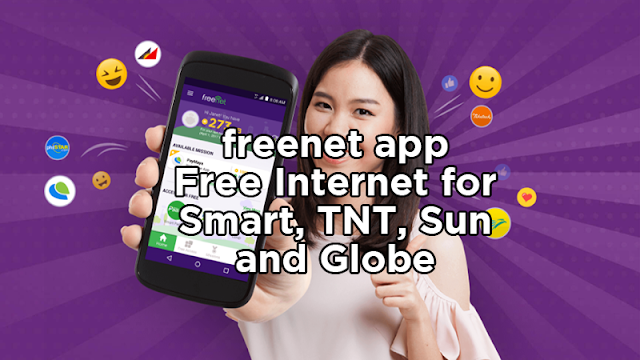
freenet app : Free Internet for Smart, TNT, Sun and Globe

freenet app : Free Internet for Smart, TNT, Sun and Globe

Smart, TNT, Sun Cellular and Globe prepaid subscribers can now access internet for free, with the freenet app by Voyager Innovations, an app for Android and iOS which offers free internet access to its partner apps and sites. Enjoy 24/7 free access to different shopping sites, news, sports, food, travel, banking, lifestyle and more! You can also earn mobile data and redeem rewards which you can use for regular browsing by just accomplishing missions. This app also helps you to save data with its monitoring features for active data subscription, packages, and remaining balance.

freenet Features


* All your favorite apps and sites are now placed in the homepage. Some of these are Lazada, Smart Padala, PayMaya, Pera Agad, Lendr, Takatack, Philippine Daily Inquirer, Cebu Pacific, Philippine Airlines and many more.
* Monitoring your active subscription is now in the homepage.
* Click the Free Access button for more free-to-access apps and sites!
* You can now control your data usage! Just turn the toggle on or off on My Data on the upper left menu button.
* Accomplish different missions on Missions menu and earn freenet points!
* If you earn enough freenet points, you can convert it to data packages or regular load, or even gaming pins (Garena Shells, LevelUp! E-Pins and Steam Wallet). Just go to Shop menu!

Download freenet app


How to register and use freenet app?


After downloading the app, open it and you will be required to register an account. Just follow these steps in registering an account:
1. Open the app. (For PC users, go to thefreenet.com and Click register and create your Voyager account.)
2. Confirm your mobile number.
3. Enter the verification code sent to your mobile number.
4. Complete your user profile.
5. Congratulations! You have successfully completed the registration!

You can now enjoy the free and fun way to connect to the internet!
If you are an old user, you can still sign in using your existing freenet account. For those who registered via Facebook, you will be asked to input your mobile number. Just follow the steps above.

How to earn points in freenet app?


Just go to Missions tab, and accomplish missions such as installing a specific app (like PayMaya, Talk2 and more which you can uninstall later after you earn the points), visiting a website and referring a friend thru your referral code.

How to redeem data and load using earned freenet points?


Be sure you have enough freenet points earned before converting it to data or load. If you have enough points earned, just go to Shop tab, and redeem your desired data or load according to its required points. After redeeming, your earned points will be deducted depending on the amount of points required by your redeemed data or load.

Here are some of the list of data packages and regular load which you can exchange with your earned freenet points (this list may vary depending on app updates):

Smart
AlwaysOn10 (10MB data + 1 day Spinnr) - requires 100pts
All day FB (1 day unli Facebook) - requires 100pts
Regular 20 (P20 Regular Smart Load) - requires 200pts
Regular 30 (P30 Regular Smart Load) - requires 300pts
Regular 50 (P50 Regular Smart Load) - requires 500pts
All Out 15 (20min trinet calls + unli allnet texts + 150mb data with unli FB for 1 day) - requires 150pts
All Out 30 (30min trinet calls + unli allnet texts + 300mb data with unli FB for 2 days) - requires 300pts
All Out 99 (100min trinet calls + unli allnet texts + 1GB data with unli FB for 7 days) - requires 1000pts

TNT
GaanPlus15 (Gaan UnliTxt 15 Plus) - requires 150pts
Regular 20 (P20 Regular TNT load) - requires 200pts
Regular 30 (P30 Regular TNT load) - requires 300pts
Regular 50 (P50 Regular TNT load) - requires 500pts
UnliTalk20 (Unli All-Net SMS, Unli trinet calls, 100MB babad apps for 1 day) - requires 200pts
UnliXtra30 (Unli all net texts + 100mins trinet call for 3 days) - requires 300pts

Sun
WRTSCTC50 (Sun Call & Text Combo valid for 5 days) - requires 500pts
WRTSI25 (iLoad 25 valid for 1 day, 3 hours of mobile internet) - requires 250pts
WSOTH10 (Sun Regular Load 10 Pesos) - requires 100pts
WSOTH50 (Sun Regular Load 50 Pesos) - requires 500pts
WSOTH100 (Sun Regular Load 100 Pesos) - requires 1000pts

Globe
GoSURF10 (40mb data for 1 day) - requires 100pts
GoSURF15 (40mb data + 30mb Musically/TikTok and games + 50 allnet texts for 2 days) - requires 150pts
GoSURF50 (1GB data + 300mb for apps + unli all net texts for 3 days) - requires 500pts

Note: An internet connection such as WiFi or mobile data promo is recommended in doing the processes above. After doing all the processes, you can now enjoy your redeemed data or load.

How To Get Free Diamonds in Mobile Legends using freenet


Here's how to get free diamonds in Mobile Legends using freenet app. After you've earned enough freenet points and exchanged it to load, you can go to codashop.com and navigate Mobile Legends then click 'Buy Now'. Enter your User ID and select the amount of diamonds to recharge, select your network to buy with load, enter your email address and click 'Buy Now'.

Aside from Mobile Legends diamonds, you can also avail Steam wallet codes, Heroes Evolved tokens, Snail Games coin, Skype vouchers, Amazon gift cards and more.

freenet Awards and Recognition


Because of its excellent and outstanding service, free received also several awards and recognitions from around the world.

2017
*Award of Excellence Recipient in the 15th Philippine Quill Awards for Consumer Campaign
2017
* Major Award Recipient in the 52nd Anvil Awards
2016
* Nominee for Best Mobile App or Service for Enterprise at Asia Mobile Awards in GSMA Mobile World Congress Shanghai (as SafeZone)
2015
* Nominee for Mobile Pricing Innovations at the Telecoms.com Award in London (as
SafeZone)
2013
* Best Consumer Award: World Communications Award in London by total Telecom/Terrapin (as SmartNet)
2012
* Most Innovative Product at the Asia Communications Awards in Singapore (as SmartNet)
* Merit Award for SmartNet Netphone campaign (as SmartNet)

If you have any concerns regarding this freenet app for Smart, TNT, Sun amd Globe, you can leave your comment below.

Thanks for reading!

Senin, 16 April 2018

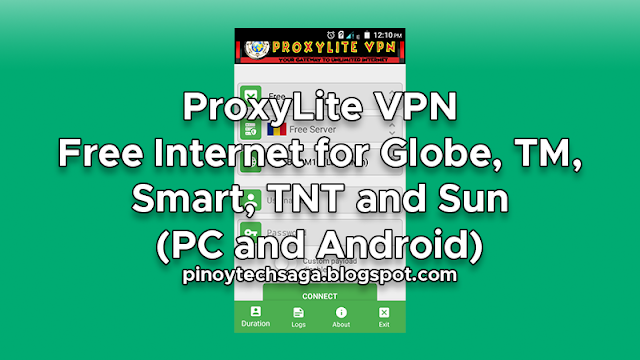
ProxyLite VPN : Free Internet for Globe, TM, Smart, TNT and Sun (PC and Android)

ProxyLite VPN : Free Internet for Globe, TM, Smart, TNT and Sun (PC and Android)

ProxyLite VPN offers free internet for Globe, TM, Smart, TNT and Sun using PC and Android, with configs for Smart No Promo and Globe/TM No Load. ProxyLite VPN is a tunneling software that can secure user's internet connection bypassing all the data to their encrypted tunnel. This is the first VPN in the Philippines to feature MAUI, which can blocks ads, malware and allows you to access KissAsian, KissAnime, KissManga and DramaFever once you're connected to any of the servers, which can also save mobile data usage.

The advantages of using ProxyLite VPN Free Server are secure transactions especially in online banking and online payments, unlimited internet, prevents phishing attacks, stay anonymous from your ISP, unblock all websites, stops malware and download anything you want. Enjoy downloading files, videos and music. Surf the web or browse popular social networking sites like Facebook, Twitter and Instagram with no restrictions. Play your favorite online games like Mobile Legends, AOV and ROS with low ping. Watch YouTube and other video sites with fast speeds.

How to setup ProxyLite VPN : Free Internet for Globe, TM, Smart, TNT and Sun (PC and Android)


Major Requirement:
Register a free account. Go to ProxyLite VPN Registration Page, enter the required details, wait for validation email and activate your account.

Notes:
Disable IDM/EagleGet integration to prevent download error.
Downloading torrent is not allowed.
Free users must login once a week to prevent account deletion.

Setup ProxyLite VPN for PC Users

Requirements:
* PC or Laptop - Windows OS
* Any 3G/4G LTE Openline modems such as Pocket WiFi, USB-Stick Modem, 936 LTE modem, 938 modem, B593 Modem openline, B22 modem, OT350 Ultera modem or Tether-Hotspot mobile. Or any network locked modems like Globe Pocket WiFi, Globe Prepaid Home WiFi, Smart Bro Pocket WiFi, Smart Bro LTE Home WiFi or Sun Broadband Pocket WiFi
* Your preferred SIM, Globe, TM, Smart, TNT or Sun Cellular Prepaid
* Go to ProxyLite VPN Download Page and choose among the following:
ProxyLite VPN for Windows - Register to promo used in VPN according to your network
ProxyLite VPN for Windows (No Promo) - Smart LTE (Luzon), APN: internet
ProxyLite SE for Windows (No Promo) - Globe/TM (LuzVisMin), APN: internet.globe.com.ph, maintain 5 PHP balance, text SURFALERT ON to 8080
* .NET Framework required (skip this if you already have Net Framework installed in your PC)

Procedure:
1. Plugin your favorite modem. Configure your APN according to your network.
2. Connect your modem.
3. Install TAP drivers and open ProxyLite VPN.
4. Choose FREE server and your chosen network. Input your account details.
5. Click Connect and wait until the VPN log displays 'You are now connected'. And you're Done! You can now browse the internet for free, surf, download, stream anything you want.

Setup ProxyLite VPN for Android Users

Requirements:
* Android device 3G/4G/LTE capable
* Your preferred SIM, Globe, TM, Smart, TNT or Sun Cellular Prepaid
* Register a free account. Go to ProxyLite VPN Registration Page, enter the required details, wait for validation email and activate your account.
* Go to ProxyLite VPN Download Page and choose among the following:
ProxyLite VPN for Android Devices - Register to promo used in VPN according to your network
ProxyLite VPN for Android Devices (No Promo) - Smart LTE (Luzon), APN: internet

Procedure:
1. Configure APN first depending on your network. Go to your network settings and find APN settings.
2. Turn On Mobile Data.
3. Launch ProxyLite VPN app.
4. Choose Free for account type, Free Server for the server, select your network and input your username and password.
5. Tap 'Connect' and wait until it connect successfully. Enjoy free internet in your Android phone or tablet. You can do unlimited browsing, downloading, gaming and video streaming in YouTube.

  • [message]
    • REMINDER
      • All ISPs are able to block your sim if you download more than 2GB. So, always monitor your download.
If you have any concerns regarding this ProxyLite VPN Free Internet tutorial, you can leave your comment below. Thanks for reading.

Credits: ProxyLite VPN (SulitNet Solutions, wOpwOp of SPTeam) formerly Squash VPN

Rabu, 11 April 2018

KPN Tunnel Revolution (KTR) : Free Internet for Globe, TM, Smart, TNT and Sun

KPNTunnel Revolution (KTR) : Free Internet for Globe, TM, Smart, TNT and Sun

KPN Tunnel Revolution (KTR) offers free internet for Globe, TM, Smart, TNT and Sun, using Direct SSL/TLS setup, no payload and remote proxy required. What is KPNTunnel Revolution? It is an android tunneling app, just like HTTP Injector, but the first tunneling app to feature Direct SSL/TLS - tunneling through SSH Tunnel directly to SSH Server over SSL/TLS Connection, which is a more secure method of connection. These are the other features: Direct Proxy, HTTP Proxy, SSL/TLS Proxy, SSL/TLS Proxy > HTTP Proxy and many more.

KPN Tunnel Revolution uses KTR Config to be able to connect. You just need a SSH (SSL/TLS) account, a Spoof Server for each network and do the rest of the settings you can found in the tutorial below. The advantage of creating your OWN .KTR files will guarantee you a fast speed connection and the exact date of the expiration, if your ssh account has an expiration.

How To Setup KPN Tunnel - KTR Config for Globe, TM, Smart, TNT and Sun Using Direct SSL/TLS


Requirements:
* Android device (smartphone or tablet, rooted or non-rooted) with Sim Slot - 3G/4G/LTE capable.
* At first, internet connection is needed in creating the KTR config (for downloading the app and for SSL/TLS account registration). Connect to WiFi or register to promos with data (MB) allocation.
* Your preferred SIM (Globe, TM, Smart, TNT or Sun) and register to promo according to your network:
Smart LTE prepaid sim
- SAKTO20 to 9999 (P20 for 2 days unlinet)
- SAKTO30 to 9999 (P30 for 3 days unlinet)
- AT60 to 9999 (P60 for 5 days unlinet)
- AllText10, reload to your SmartLoad retailer (P10/day unlinet)
SMARTBro sim
- AT10 to 9999 (P10 for 1 day, 2GB/day)
- AT60 to 9999 (P60 for 5 days, 2GB/day)
Talk 'N Text
- TP20 to 4545 (P20 for 2 days, 2GB/day). Extend this promo for additional 1 day, text EXTEND to 4545. Extend as many times as you want for only P5/extend.
- WHATS10 to 4545 (P10 for 3 days).
- IG10 to 4545 (P10 for 3 days).
- COC10 to 4545 (P10 for 3 days)
Sun Cellular
- TU50 to 247 (P50 for 10 days, no data cap)
Globe/TM
- Collect free data offers from Globe Switch app
Or register to any data promo like:
- ASTIGFB10 to 8080 (P10 for 1 day, 100MB/day) - TM
- ASTIGFB15 to 8080 (P15 for 2 days, 100MB/day) - TM
- VIBER30 to 8080 (P30 for 5 days, 100MB/day) - Globe
More promos, check this List of Globe/TM, Smart/TNT, and Sun Promos
* Download KPN Tunnel Revolution in Google Play Store or KPN Tunnel APK

Procedure:
1. Open any android internet browser. Create your own SSH-SSL/TLS account first. Choose one of the following Free Tunnel websites:
www.mytunneling.com/ssh-ssl
www.speedssh.com/ssl-server
www.flyssh.com/ssl-server
www.fastssh.com/page/ssh-ssl-stunnel-servers
www.portssh.com/ssl-server
www.freevpn.us/ssh-ssl

For example, speedssh.com SG Server 7 days was used in creating SSH account:
Recommended servers : Singapore, Japan and Germany. Singapore is the best choice if you want to create a low ping ktr which is good for online games.
KTR Config - speedssh.com SG Server 7 days was used in creating SSH account

Remember these details: Host IP, username and password (we will use this later in KPN-SSH Tunnel Settings). I recommend you to save the page or to take a screenshot by pressing 'power button + volume down button'.

2. Open KPNTunnel Rev app, and reset its settings/data. Just follow the instruction in the image below.
Open KPNTunnel Rev app, and reset its settings.

3. Set Proxy Type to 'Direct SSL/TLS'. In Spoof Server, choose a host below matching your network and promo registered.
- www.facebook.com / h.facebook.com / fbcdn.com (for Smart FB-based promos)
- www.viber.com (for Smart BRO Viber-based promos like AT10 & AT60)
- m.me (for TNT FB-based promos, and SUN TU Promos)
- instagram.com (for TNT IG10 promo) / m.clashofclans.com (for TNT COC10 promo) / m.snapchat.com (for TNT SNAP10 promo)
- clients3.google.com (for Globe/TM promos with data allocation)
- m.viber.com (for Sun Prepaid Viber-based promos like SUN TU Promos)
KPNTunnel Rev Proxy Type Settings

4. Open the SSH Settings, tick the checkbox to enable SSH Tunnel, then tap SSH Tunnel area to open its advanced settings. See the instruction in the image below.
Open the SSH Settings, tick the checkbox to enable SSH Tunnel, then tap SSH Tunnel area to open its advanced settings.

5. You can now input your SSH account details that you created and recorded earlier including HOST IP, username and password. And tick the checkbox of both Data Compression and Custom DNS.
KPN Tunnel SSH Account Settings

6. After that, you're back to main interface. Tap the 'Start' button, when the 'Attention' popup occurs, check the 'I trust this application' and click 'OK'. And you're DONE! Enjoy fast and unlimited free internet access.

Optional: How To Export KTR Config

Using your connected KTR Config, tap the 'three dotted icon' and select Config option. Select Export and set the name of your config, then tap 'Export'.
  • [message]
    • Note
      • Free SSH account has expiration of 5 to 7 days, so you need to create a new account after it expires. Just follow the same procedure above when you create another .ktr file configuration.
If you have any concern regarding this step by step tutorial on how to create KTR file, you can leave a comment below.

Credits : KPN Family-Muhammad Nur Kholis, paoloaztig of Mobilarian (Symbianize), j3sse of phcorner

Selasa, 10 April 2018

Hotspot Shield Elite VPN (HSS) : Free Internet for Globe, TM, Smart, TNT and Sun

Hotspot Shield Elite VPN (HSS) : Free Internet for Globe, TM, Smart, TNT and Sun

Hotspot Shield Elite VPN offers free internet access to Globe, TM, Smart, TNT and Sun which can be used for free internet or anonymity, available to PC/Laptop users. HSS VPN can also bypass 800MB capping of Globe. HSS Elite VPN for PC features ad-free browsing experience, complete cloud-based malware protection and thousands of virtual locations/servers all over the world. Hotspot Shield VPN is the most trusted VPN in the world with over 500 million downloads.

The advantages of using HSS VPN is it provides secure and private access to a free and open internet. Enabling access to social networks, sports, audio and video streaming, news, dating, gaming wherever you are. Unblock websites, unblock YouTube, unblock Facebook, unblock Twitter or sites at school, the library, or your office with Hotspot Shield VPN. You can bypass filters and firewalls set by your network administrator to gain access to your favorite content. Other benefits include: Anonymous surfing, Hide your IP address, Private & secure browsing, Wi-Fi Security and Malware Protection.

How to setup Hotspot Shield Elite VPN : Free Internet for Globe/TM, Smart/TNT and Sun


Requirements:
* PC or Laptop with Windows 7/8/10 Operating System
* 3G/4G LTE Openline modems such as Pocket WiFi / USB-Stick Modem / 936 LTE modem / 938 modem / B593 Modem openline / B22 modem / OT350 Ultera modems / Tether-Hotspot mobile
* Your preferred SIM, Globe, TM, Smart, TNT or Sun Cellular Prepaid
* Register to a promo used in VPN with APN Settings for your network, or you may try no load, you might be lucky.
* Download Hotspot Shield Elite Edition - extract it first using WinRAR or WinZip, or any file archiver software.
* Download NET Framework - Prerequisite component by HSS client, skip this if you already have NET Framework installed in your PC/Laptop

Procedure:
1. Plugin your favorite modem and configure APN first depending on your network, edit your APN according to your chosen network. APN Settings can be found on your modem's dashboard.
2. Connect your modem.
3. Install Hotspot Shield Elite VPN. Select Custom Installation method to uncheck other third party apps or bloatwares.
4. After installation, just click 'CONNECT' button and wait until the status turns to PROTECTED.
5. Upon successful connection, you can also change the server/virtual location.
6. Done! You can now browse the internet for free. To disconnect, just right click 'Pause Protection', select 'Until I ask to resume' and click 'Pause Now'.

  • [message]
    • REMINDER
      • All ISPs are able to block your sim if you download more than 2GB. So, always monitor your download.

If you have any concerns regarding this HSS Elite VPN Free Internet tutotial, you can leave your comment below. Thanks for reading.

Credits: Mast3rminD of Mobilarian (Symbianize)

Rabu, 21 Februari 2018

Google Cloud VPN : Free Internet for Globe, TM, Smart, TNT and Sun (PC, Android, iOS)

Google Cloud VPN : Free Internet for Globe, TM, Smart, TNT and Sun (PC, Android, iOS)

Google Cloud VPN offers free internet for Globe, TM, Smart, TNT and Sun using PC, Android, iOS, with fast secure servers and unlimited internet connection. Cloud VPN securely extends your on-premises to Google's network through an IPsec VPN tunnel. Traffic is encrypted and travels between the two networks over the public Internet. Cloud VPN is useful for low-volume data connections.

The advantages of using Google VPN are secure transactions especially in online banking and online payments, unlimited internet, prevents phishing attacks, stay anonymous from your ISP, unblock all websites, stops malware and download anything you want. Enjoy downloading files, videos and music. Surf the web or browse popular social networking sites like Facebook, Twitter and Instagram with no restrictions. Play your favorite online games like Mobile Legends and ROS with low ping. Stream YouTube and other video sites with fast speeds and no buffering.

Google Cloud VPN Servers features fast and secure connection. Cloud VPN servers include Google Server, Dallas, Tampa, Chicago, New Jersey, San Francisco, and 4 Los Angeles servers.

How to setup Google Cloud VPN : Free Internet for Globe, TM, Smart, TNT and Sun (PC, Android, iOS)


For PC Users

Requirements:
* PC or Laptop - Windows OS
* 3G/4G LTE Openline modems such as Pocket WiFi / USB-Stick Modem / 936 LTE modem / 938 modem / B593 Modem openline / B22 modem / OT350 Ultera modems / Tether-Hotspot mobile
* Your preferred SIM, Globe, TM, Smart, TNT or Sun Cellular Prepaid
* Register to promo used in VPN with APN Settings for your chosen network
* Download Google Cloud VPN for PC (extract it first)
* Google Cloud VPN account, message me thru the Contact Form, and kindly wait for reply.

Procedure:
1. Plugin your favorite modem and configure APN first depending on your network, edit your APN according to your chosen network.
2. Connect your modem.
3. Download and open Google Cloud VPN, run as Admin. Go to 'Drivers' tab and choose the System Type of your OS, Win 64 or Win 32, and click 'Install' to install the tap drivers required by the VPN.
4. Now, enter the Google Cloud VPN account in the 'Authorization' tab and click 'Save'.
5. After entering the account details. Choose one of the Google Cloud servers, just right click the icon of VPN found in the notification icons located at the bottom right corner of your screen .
6. Wait until it will get connected, and you're DONE. You can now browse the internet for free, surf, download, stream anything you want.

For Android Users

Requirements:
* Android phone 3G/4G/LTE capable
* Your preferred SIM, Globe, TM, Smart, TNT or Sun Cellular Prepaid
* Register to promo used in VPN with APN Settings for your chosen network
* Download OpenVPN for Android in Google Playstore
* Download Google Cloud VPN Android OVPN Config (extract it first)
* Google Cloud VPN account, message me thru the Contact Form, and kindly wait for reply.

Procedure:
1. Configure APN first depending on your network, edit your APN according to your chosen network. Go to your network settings and find APN settings.
2. Turn On Mobile Data.
3. Launch OpenVPN app.
4. Tap 'Option' then select 'Import Config from SDCard etc'. Locate the ovpn file you extracted.
5. Input Google Cloud VPN account details.
6. Tap 'Connect' and you're DONE. Enjoy browsing, downloading, gaming especially Mobile Legends and video streaming in YouTube for free.

For iOS Users

Download OpenVPN Connect for iOS in Apple App Store. Then follow the other requirements and procedure above from Android.

Update: currently not working.
This Google Cloud VPN might not last long because it is a paid premium vpn with account expiration so use it while it is active.

  • [message]
    • REMINDER
      • All ISPs are able to block your sim if you download more than 2GB. So, always monitor your download.
If you have any concerns regarding this Google Cloud VPN Free Internet tutotial, you can leave your comment below. Thanks for reading.

Credits: RAM11KK11 and loik of Mobilarian (Symbianize)

Sabtu, 17 Februari 2018

Globe Free Internet Trick Using Psiphon Handler Dzebb

Globe Free Internet Trick Using Psiphon Handler Dzebb

Globe Free Internet can be done using Psiphon Handler Dzebb, an android phone, Globe Prepaid SIM. With this Globe internet trick, you can surf any websites without restrictions, browse Facebook, Twitter, Instagram, download unlimited files and stream YouTube videos. Globe free internet bug is working even 0 load balance or you can try it with promo.

With Psiphon app, access everything on the Open Internet. Millions of people around the world are already connecting to the Internet using Psiphon, the most robust circumvention tool on the web. Psiphon facilitates access to websites and services which are censored, blocked, or otherwise unavailable due to ISP blocking, no matter where you are in the world. Whether you can't access your favorite news broadcast today, or want to provide an extra layer of protection when using public wi­fi services, Psiphon is the best tool for accessing the open Internet.

How To Setup Globe Free Internet Hack Using Psiphon Handler Dzebb


Requirements:
Globe Prepaid Sim
0 load balance or use promo
Android phone 3G/4G/LTE supported
Download Psiphon Handler Dzebb

Procedure:
1. Turn On Mobile Data.
2. Install and open Psiphon handler app.
3. Follow these handler settings:
Check the 'Remove Port', and set:
Proxy Type: HTTP
Custom Header: X-Online-Host
Proxy Server: m.globe.com.ph
Real Proxy Type: Default
Real Proxy Server: 185.65.206.123
Real Proxy Port: 80
4. Tap on 'Save' button.
5. Now you can see the connection manager, and it will ask you to whether 'Use Psiphon Browser Only or Tunnel Whole Device'. Select Tunnel Whole Device option.
6. Now an Attention pop up window will ask you to Create VPN connection with Psiphon. ALLOW it by checking 'I trust this application' and pressing 'OK'.
7. Wait for a few moment for the application to be connected. After getting connected, minimize Psiphon handler and start browsing, downloading, streaming and gaming.
8. Done! Psiphon is completely free VPN service with no daily limit, so you can surf unlimited internet using your Globe SIM.

The recommended usage using this Globe internet trick is 1-2GB per day to avoid slowing down of speed.

If you have any concerns regarding this Globe Free Internet Trick Using Psiphon Handler Dzebb tutotial 2018, you can leave your comment below. Thanks for reading.

Credits: Psiphon Handler by Dzebb

Smart Free Internet Trick Using Psiphon Handler Dzebb

Smart Free Internet Trick Using Psiphon Handler Dzebb

Smart Free Internet can be done using Psiphon Handler Dzebb, an android phone, Smart Prepaid SIM. With this Smart internet trick, you can surf any websites without restrictions, browse Facebook, Twitter, Instagram, download unlimited files and stream YouTube videos. Smart free internet bug is working even 0 load balance or you can try it with promo.

With Psiphon app, access everything on the Open Internet. Millions of people around the world are already connecting to the Internet using Psiphon, the most robust circumvention tool on the web. Psiphon facilitates access to websites and services which are censored, blocked, or otherwise unavailable due to ISP blocking, no matter where you are in the world. Whether you can't access your favorite news broadcast today, or want to provide an extra layer of protection when using public wi­fi services, Psiphon is the best tool for accessing the open Internet.

How To Setup Smart Free Hack Internet Using Psiphon Handler Dzebb


Requirements:
Smart Prepaid Sim
0 load balance or use promo
Android phone 3G/4G/LTE supported
Download Psiphon Handler Dzebb

Procedure for Setting #1:
1. Turn On Mobile Data.
2. Install and open Psiphon handler.
3. Follow these handler settings:
Check the 'Remove Port', and set:
Proxy Type: Real Host or Host
Custom Header: X-Online-Host
Proxy Server: v.smartads.com.ph or smart.safezone.ph
Real Proxy Type: Default
4. Tap on 'Save' button.
5. Now you can see the connection manager, and it will ask you to whether 'Use Psiphon Browser Only or Tunnel Whole Device'. Select Tunnel Whole Device option.
6. Now an Attention pop up window will ask you to Create VPN connection with Psiphon. ALLOW it by checking 'I trust this application' and pressing 'OK'.
7. Wait for a few moment for the application to be connected. After getting connected, minimize Psiphon handler and start browsing, downloading, streaming and gaming.
8. Done! Psiphon is completely free VPN service with no daily limit, so you can surf unlimited internet using your Smart SIM.

Procedure for Setting #2:
1. Turn On Mobile Data.
2. Install and open Psiphon handler.
3. Follow these handler settings:
In 'FrontQuery' section enter these three URLs one per line:
smartnet.ph
smartpadala.ph
smart.safezone.ph
In 'Add Port to Non-Port Url' section, input 8080.
Tick on 'Remove Port'
Proxy Type: Real Host
Proxy Server: p.safezone.ph
Real Proxy Type: Default
Real Proxy Port: 8888
4. Tap 'Save' button and start using free data on your Smart sim card.

The recommended usage using this Smart internet trick is 1-2GB per day to avoid SIM blocking wherein you can't connect your SIM to the internet. If in case, you experience SIM Blocking on your Smart sim, to unblock your sim and activate its service again, see How To Unblock Smart Sim via *888.

If you have any concerns regarding this Smart Free Internet Trick Using Psiphon Handler Dzebb tutotial 2018, you can leave your comment below. Thanks for reading.

Credits: Psiphon Handler by Dzebb

Sabtu, 10 Februari 2018

OppaNet VPN : Free Unlimited VPN for Globe/TM, Smart/TNT and Sun

OppaNet VPN : Free Unlimited VPN for Globe/TM, Smart/TNT and Sun

OppaNet VPN offers free unlimited VPN access to Globe, TM, Smart, TNT and Sun which can be used for free internet or anonymity, available to PC/Laptop users. Enjoy downloading files, videos and music. Surf the web or browse popular social networking sites like Facebook, Twitter and Instagram with no restrictions. Play your favorite online games with low ping for more stable connection. Stream YouTube and other video sites with fast speeds. Do all these internet activities with Oppa Net VPN.

The advantages of using VPN are secure transactions especially in online banking and online payments, unlimited internet, prevents phishing attacks, stay anonymous from your ISP, unblock all websites, stops malware and download anything you want. Experience these advantages and features with OppaNet VPN. This VPN was powered by ExpressVPN servers modified by apokalypto of symbianize, so you can ensure a fast and reliable VPN connection.

How to setup OppaNet VPN : Free Unlimited VPN for Globe/TM, Smart/TNT and Sun


Requirements:
* PC or Laptop with Windows 7/8/10 Operating System
* 3G/4G LTE Openline modems such as Pocket WiFi / USB-Stick Modem / 936 LTE modem / 938 modem / B593 Modem openline / B22 modem / OT350 Ultera modems / Tether-Hotspot mobile
* Your preferred SIM, Globe, TM, Smart, TNT or Sun Cellular Prepaid
* Register to a promo used in VPN with APN Settings for your network, or you may try no load, you might be lucky.
* Download OppaNet VPN installer (v1.7) - extract it first using WinRAR or WinZip, or any file archiver software.
* Download NET Framework - Prerequisite component by OppaNet client
* Knowledge in VPN
* Note: Please turn off IDM / EagleGet to avoid errors in downloads.

Procedure:
1. Plugin your favorite modem and configure APN first depending on your network, edit your APN according to your chosen network. APN Settings can be found on your modem's dashboard.
2. Connect your modem.
3. Open OppaNet app.
4. Go to 'Proxy Checker' tab, and find proxies with port 3128 to these proxy sites: https://www.proxynova.com/proxy-server-list/
http://proxydb.net/
http://premiumproxy.net/squid-proxy-list.php
http://spys.one/free-proxy-list/
5. After getting a live and working proxy, go to 'General' tab and input the proxy and port in 'Remote Proxy and Port'.
6. Choose your preferred Server and Network and click 'Connect' button.
7. Done! You now have fast and unlimited vpn access. Enjoy browsing, downloading, gaming and video streaming in YouTube for free.

  • [message]
    • REMINDER
      • All ISPs are able to block your sim if you download more than 2GB. So, always monitor your download.

If you have any concerns regarding this Oppa Net VPN Free Internet tutotial, you can leave your comment below. Thanks for reading.

Credits: apokalypto of Mobilarian (Symbianize)

Rabu, 31 Januari 2018

List of Globe/TM, Smart/TNT, and Sun Promos Used in VPNs as Free Internet

List of Globe/TM, Smart/TNT, and Sun Promos Used in VPNs as Free Internet - Update 2018

Most VPN has configs which requires a specific promo for you to be able to connect. For example BlueVPN, it has a 'TNT twitter config', you need to be registered first to any TNT twitter related promo.

To download BlueVPN and other VPN, HTTP Injector and tunneling apps available, See Compilation of Free Internet Tutorials for Globe, TM, Smart, TNT, Sun

Here is the list of Globe/TM, Smart/TNT, and Sun Promos Used in VPN and HTTP Injector as Free Internet - Update 2018 (with APN settings each network)

  • [message]
    • Note
      • Please know first the promo required by your VPN config before registering to any promo, so that you can assure that you will successfully connect and prevent spending your load by mistake.
  • [message]
    • Tip
      • When NO CAPPING is indicated in the promo, you can use it in VPN without limit but to avoid sim block, 1-2GB is the recommended usage per day.
        If you experienced sim block on 800MB usage only, I recommend that you disconnect and unplug your modem every 400MB download, and just plug it and reconnect again to continue browsing and downloading. For mobile phone users, turn off mobile data, switch to airplane mode for 3 mins, then turn off airplane mode and turn on mobile data again.
        If you're looking on how to unblock your sim, see Unblock Smart/TNT Sim Tutorial and Unblock Globe Sim Tutorial.

RECENT UPDATE:
February 2018 update - Promo Updates for all networks with [February 2018 update] header.

GLOBE / TM [Applicable for Luzon/Visayas/Mindanao]
View the tutorial on [Globe Switch]
SUPERSURF50 to 8080 (50 pesos) = 1GB good for 1 day

TM / TM LTE / TM EASY PLAN with PROMO (send KEYWORD to 8080) [Applicable for Luzon/Visayas/Mindanao]
APN Settings: http.globe.com.ph
[ February 2018 update ]
TM Secret Promo (may vary depending on your recent subscriptions/usage history)
dial *143*6*2# = 3 days 500MB per day
dial *143*6*3# = 7 days 500MB per day
[ December 2017 update - all are 1GB+ per day ]
PISO to 8080 (1 Peso/day) = 1 day, under observation
WATTPAD5 + SULITXT5 (10 pesos) = 2 days
WATTPAD99 + SULITXT5 (104 pesos) = 30 days/1 month
COC5 + SULITXT5 + SURFALERT ON (10 pesos) = 2 days
COC5 + POGO99 or SULIXT5 + POGO99 + SURFALERT ON (105 pesos) = 30 days/1 month
ASTIGTXT30 (30 pesos) = 5 days
TXT10 (10 pesos) = 2 days
FB5 + SULITXT5 + SURFALERT ON (10 pesos) = 3-5 days
[JOFOM new update - Under observation]
GS15 + WATTPAD5/SULITXT5 (20 pesos) = 2 days no capping
GS30 + WATTPAD5/SULITXT5 (35 pesos) = 2 days no capping
GS50 + WATTPAD5/SULITXT5 (55 pesos) = 3 days no capping
[ July 2017 update ]
SURFALERT ON + (Dial *143# and find Social20/Mail20) + GTXT1 (21 pesos) = 1 day no capping
GOSURF50 (50 pesos) = 3 days no capping (Under observation)
FB5 + SURFALERT ON (5 pesos) = 2 days 1GB per day (Under observation)
C10 (10 pesos) = 1 day 800MB limit
C15 + WATTPAD5 (20 pesos) = 2 days 800MB per day
C15 + COC5 (20 pesos) = 2 days 2GB-3GB per day
A20 (20 pesos) = 2 days 4GB per day
A20 + COC5 (25 pesos) 2 days 2GB-3GB per day
A20 + YOUTUBE2 (22 pesos) = 2 days no capping
C20 (20 pesos) = 3 days 800MB per day
C20 + COC5 (25 pesos) = 3 days 800MB per day
CA20 (20 pesos) = 3 days 800MB per day
ASTIGTXT30 + COC5 (35 pesos) 5 days 2GB-3GB per day
POGO99 + SULITXT5 (104 pesos) = 1 month no capping
[ Other Touch Mobile Promos ]
COC5 + P5 (10 pesos) = 3 days no cap
ASTIGTXT30 (30 pesos) = 5 days no cap

GLOBE / GLOBE LTE PROMO (send KEYWORD to 8080) [Applicable for Luzon/Visayas/Mindanao]
APN Settings: http.globe.com.ph
[ February 2018 update ]
Globe Just For You! Promo (may vary depending on your recent subscriptions/usage history)
dial *143*7*3*1# (15 pesos) = 2 days 500MB per day
Globe Unlimited Internet Promos good for 1 day:
GOCOMBOAKFA31 to 8080 (31 pesos) = 1GB+ for 1 day
[ December 2017 update - all are 1GB+ per day ]
SULITXT15 + POGO10 + SURFALERT ON = 1 day
TXT10 = 1 day
GOUNLITXT49 = 7 days/1 week
VIBER30 = 5 days
POGO99 + SURFALERT ON = 30 days/1 month
[ July 2017 update ]
TXT10 (10 pesos) = 1 day 800MB limit
GOTXT10 (10 pesos) = 1 day 5GB limit
GOTXT15 (15 pesos) = 3 days 5GB per day
VIBER30 (30 pesos) = 5 days 800MB per day
WATTPAD5 + ATXT80 (85 pesos) = 1 month 1.5GB per day
[ May 2017 update ]
FB5 + SURFALERT ON (5 pesos) = 3 days no capping
[ Other Globe Telecom Promos ]
WATTPAD10 (10 pesos) = 2 days 1GB per day
SULITXT15 + POGO10 + SURFALERT ON (25 pesos) = 1 day no capping
GOUNLITXT49 (49 pesos) = 7 days no capping (Currently Not Working)

GLOBE / TM Default NO PROMO
APN Settings: http.globe.com.ph or internet.globe.com.ph
It is recommended to turn off mobile data first in doing the SURFALERT TRICK.
Load 5 pesos and send SURFALERT ON to 8080.

GLOBE MGC (MyGlobeConnect) NO LOAD NEEDED [Applicable for Luzon/Visayas/Mindanao]
APN Settings: www.globe.com.ph ( MUST BE 4G/LTE AREA, For Luzon, you're IP address prefix must be 10.11 or 10.83)

TNT with PROMO
APN Settings: internet
[ February 2018 update ]
SNAP10 to 4545 (10 pesos) = 3 days 2GB per day
CHOOSE SNAP/WECHAT/IG to 4545 (20 pesos) = 3 days 2GB per day
CR10 or HAYDAY10 or BOOM10 to 4545 (10 pesos) = 3 days 2GB per day
[ December 2017 - all are capped speed ]
TNT Babad Apps promos - 10 pesos good for 3 days
[ October 2017 update ]
CHOOSE WECHAT/HAYDAY/INSTAGRAM to 3533 (20 pesos) using choose/instagram config = 3 days 2GB per day (capped speed of 100kbps after reaching 200MB)
CHOOSE WATTPAD/VIBER/TWITTER to 3533 (20 pesos) using wattpad/tnt viber/tnt twitter config = 3 days 2GB per day (capped speed of 100kbps after reaching 200MB)
[ August 2017 update ]
TP10 to 3545 + WECHAT2 to 4545 (3times) (16 pesos) = 3 days 2GB per day (capped speed of 100kbps after reaching 200MB)
UTP10 to 4505 + WECHAT2 to 4545 (3times) (16 pesos) = 3 days 2GB per day (capped speed of 100kbps after reaching 200MB)
[ July 2017 update ]
IG10 to 4545 (10 pesos) = 3 days 2GB per day (capped speed of 100kbps after reaching 200MB)
TP10 to 3545 + IG2 to 4545 (3times) (16 pesos) = 3 days 2GB per day
UTP10 to 4505 + IG2 to 4545 (3times) (16 pesos) = 3 days no capping (recommended usage: 2GB per day to avoid sim block)
SCHOOL to 5555 (5 pesos) = 1 day no capping (recommended usage: 2GB per day to avoid sim block) (Until August 25, 2017 only)
GT10 to 8855 + IG2 to 4545 (3times) (16 pesos) = 3 days no capping (recommended usage: 2GB per day to avoid sim block)
[TNT Champion Sim - Mindanao only] P10 to 3545 + T2 to 4545 (3times) (16 pesos) = 3 days no capping (recommended usage: 2GB per day to avoid sim block)
[ May 2017 update ]
TP10 to 3545 + WATTPAD2 to 4545 (3times) (16 pesos) = 3 days 2GB per day (other promos to combine: FB2, COC2, VIBER2)
TP10 to 3545 + VIBER2 to 4545 (3times) (16 pesos) = 3 days 2GB per day
[ Other Talk 'N Text Promos ]
TP10 to 3545 + T2 to 4545 (3times) (16 pesos) = 3 days 2GB per day
UTP10 to 4505 + T2 to 4545 (3times) (16 pesos) = 3 days 2GB per day
TP15 to 4545 + T2 to 4545 (3times) (21 pesos) = 3 days 2GB per day
List of TNT promos with capped speed of 100kbps and a bandwidth limit of 200MB
GOOGLE10 - send to 4545
COC10 send to 4545
TWITTER10 send to 4545
VIBER10 send to 4545
WATTPAD10 send to 4545
WECHAT10 send to 4545
SCHOOL send to 5555 (5 load/1 day)
ML10 to 4545

TNT Techno User Sim with PROMO
APN Settings: internet
All TNT Regular promos listed above will work also for TNT Techno User Sim.
View [TNT Techno User Sim details], this sim costs 500 Pesos which can be bought thru several Facebook Buy and Sell groups.
M10 to 4545 (10 pesos) = 3 days 20GB per day
M10 to 4545 (send 10 times) (100 pesos) = 1 month 20GB per day
M10 to 4545 (send 50 times) (500 pesos) = 5 months 20GB per day

SMART PREPAID / BRO / KICSTART / LTE
APN Settings: internet or SMARTLTE
Luzon
[ February 2018 ]
SmartBro, text AT30 to 9999 (30 pesos) = 3 days 3GB per day
SmartBro and Prepaid, text AT60 to 9999 and BIG5 to 9999 (65 pesos) = 5 days 4GB per day
JumpIn, text JUMPTXT15 to 5867 (15 pesos) = 2 days 3GB per day
Smart Prepaid
AOC20 to 9999 / SAKTO20 to 9999 (20 pesos) = 3 days 3GB per day
ALLOUT25 to 9999 (25 pesos) = 2 days 3GB per day
ALLOUT99 to 9999 and BIG5 to 9999 (104 pesos) = 7 days 3GB per day
[ September 2017 update ]
AT10 direct load from retailer, 10 pesos good for 1 day, works on FB and Viber Config
PLAY100 or GAME100 to 9999 (100 pesos) = 30 days 1GB per day
PLAY50 or GAME50 to 9999 (50 pesos) = 7 days 1GB per day
Visayas/Mindanao
The following Smart Promos are working with Facebook/Viber config.
SUPER10 to 9999 = Unlimited Data for 1 Day
AT10 to 9999 = Unlimited Data for 1 Day
AT12 to 9999 = Unlimited Data for 1 Day
AT20 to 9999 = Unlimited Data for 1 Day
AT60 to 9999 = Unlimited Data for 5 Days
ALLTEXT10 Plus (register via *121#) = Unlimited Data for 1 Day. To extend the validity, just register ALLTEXT10 multiple times depending on how many days you want to use it.
ALLTEXT60 Plus (register via *121#) = Unlimited Data for 5 Days. To extend the validity, just register ALLTEXT60 multiple times depending on how many days you want to use it.
Smart Flexitime Promo ended on August 30, 2017
FLEXITIME 20 to 2200 (20 pesos) = 2.5 hours (consumable for 1 day) 10GB limit
FLEXITIME 30 to 2200 (30 pesos) = 4 hours (consumable for 1 day) 10GB limit
FLEXITIME 50 to 2200 (50 pesos) = 7 hours (consumable for 3 days) 10GB per day
FLEXITIME 100 to 2200 (100 pesos) = 15 hours (consumable for 7 days/1 week) 10GB per day

SUN with PROMO (send KEYWORD to 247) [Applicable for Luzon/Visayas/Mindanao]
APN Settings: wap
All Sun Promos are subject to speed cap of 100kbps when used continuously.
[ February 2018 update ]
ULTIMATE249 to 247 (249 pesos) = 30 days 4GB per day
NONSTOP299 to 247 (299 pesos) = 30 days 4GB per day
SOCIAL199 to 247 (199 pesos) = 30 days 1.2GB per day
TU150 to 247 (150 pesos) = 30 days 4GB per day
TU50 to 247 (50 pesos) = 10 days 4GB per day
FB50 to 247 (50 pesos) = 7 days 4GB per day
PLAN 300 - Apply Plan 300 to Sun Shop (300 pesos per month) = 30 days 4GB per day
[ Other Sun Promos ]
EGAMES50 (50 pesos) = 3 days 2GB per day
SOCIAL10 (10 pesos) = 1 day 2GB limit
FB20 (20 pesos) = 3 days no data capping
TU60 (60 pesos) = 10 days no data capping
TU200 (200 pesos) = 30 days/1 month no data capping
PHOTO199 (199 pesos) = 30 days/1 month no data capping
PHOTO10 (10 pesos) = 1 day 2GB limit
MSG5 (5 pesos) = 1 day 2GB limit

SUN NO PROMO
APN Settings: mms (capped speed to 100kbps)

Cherry Prepaid
[ February 2018 update ]
CMVIBE5 to 2138 (5 pesos) = 1 day 800MB
CMUNLI100 to 2138 (100 pesos) = 7 days 800MB per day
CMCHAT10 to 2138 (10 pesos) = 1 day 800MB

ABS-CBN Mobile
[ February 2018 update ]
KUC10 to 2135 (10 pesos) = 1 day 800MB
IWANTV10 to 2135 (10 pesos) = 1 day 800MB

Always visit PinoyTechSaga for more updates.
Credits to All Discoverers

Psiphon Handler APK v108 Free Download, Free Internet for Globe and Smart

Psiphon Handler APK v108 Free Download, Free Internet for Globe and Smart

Psiphon is very popular tunneling app for android due to its ability to unblock censored or blocked websites no matter where you are in the world. The mod version of Psiphon is called Psiphon handler APK created by Dzebb which is used to bypass Philippine ISP networks/carrier such as Globe, TM, Smart, TNT and Sun resulting to free internet with unlimited data good for downloading and surfing. This may even work for other carriers in Mexico, Indonesia, India and other parts of the world. You don't need to load your SIM, as in 0 Peso load balance. Using Psiphon handler APK v108, it will give a proxy setting which you can configure according to your network. But, Psiphon 108 handler UI settings varies from one network to other.

With Psiphon, Access Everything on the Open Internet. Millions of people in over 200 countries around the planet are already connecting to the Internet using Psiphon, the most robust circumvention tool on the web. Psiphon facilitates access to websites and services which are censored, blocked, or otherwise unavailable due to ISP blocking, no matter where you are in the world. Whether you can't access your favourite news broadcast today, or want to provide an extra layer of protection when using public wi­fi services, Psiphon is the best tool for accessing the open Internet.

Download Psiphon Handler APK 2018


Package name: Psiphon handler v108
Size: 5.17 MB
Operating System: Android

[Download Psiphon Handler APK v108]

Psiphon Handler Settings for Globe and Smart


Root is not required for this app.
3G/4G/LTE capable android phones are required to activate this service.
Install APK and open it.
Check Psiphon preconfigured settings for Globe and Smart.
Copy and paste one of the Hosts under "Proxy Server", according to your service provider.
Tap "Start".
When you start the app, tap on "Tunnel Whole Device".
Tap "I trust this application" and select "OK".
Wait for the application to connect to the server.
Done! Enjoy free and unlimited internet with fast speed.