Tampilkan postingan dengan label Telecom Tips. Tampilkan semua postingan

Selasa, 11 September 2018

How to Upgrade Smart SIM to LTE

How to Upgrade Smart SIM to LTE

Still using your old Smart SIM card with your new LTE smartphone? It's time for you to upgrade your Smart non-LTE sim to LTE to experience fastest data connection. Don't worry about fees, this Smart LTE SIM upgrade is completely FREE in Smart store or Sim upgrade center near you. You'll also retain your old mobile number. Remember to back up your SIM contacts and messages to your phone's internal or external memory.

Smart LTE SIM upgrade is available to Smart Prepaid, Smart Bro Prepaid and will be soon available to Smart Postpaid. The Smart LTE SIM features tri-cut sim card (regular, micro, nano) and internet speed of up to 42 MBps. Enjoy different online activities with 4G LTE (Long Term Evolution). Stream video at super fast speeds in YouTube, Vimeo or Daily Motion. Download files, music and videos faster than ever. Seamless multiplayer mobile gaming with low ping in Mobile Legends, AoV, PUBG Mobile, ROS, and more online games. Super clear and fast video calls in FB Messenger, Skype, IMO, WeChat, Viber and other chat apps. Stay connected to your favorite social apps like Facebook, Twitter and Instagram.

How to Upgrade Smart SIM to LTE


There are two ways to upgrade your Smart SIM to LTE: (1) Do It Yourself; (2) via Smart Store.

Do It Yourself

1. Buy an LTE-Ready Self-Service Upgrade SIM from Smart Stores, official retail partners or convenience stores for only Php10.

Using your current SIM, text GET PIN to 7927 for free. And you will receive an SMS containing 6-digit PIN. Just a few reminder. Don't share the unique upgrade code to anybody. Memorize or take note of your upgrade code. Your upgrade code is only valid for thirty (30) minutes.

2. Insert the new Smart LTE SIM on your phone. The menu prompt for upgrade code should popup.

3. Enter the 6-digit upgrade code on the prompt, then press OK.

4. Keep your phone idle for 15 minutes, then restart your phone and wait for the SMS conformation. Keep your number when you upgrade your SIM.

Via Smart Store

1. You may get the LTE Upgrade SIM for FREE in the nearest Smart Store or authorized SIM upgrade center in your area, just bring the following: Old SIM and 1 Valid ID - preferably government issued.

2. The Smart representative will then process the LTE SIM upgrade.

3. Your new LTE SIM will be ready anywhere from 15 minutes to 24 hours after upgrading.


Your SIM is now LTE and you can still use your old mobile number as well as your remaining load balance, promo and MVP Rewards points in your old SIM. Register Smart internet promos to experience browsing speed of up to 42 Mbps. Dial *121#.

You can verify the LTE capability of your SIM by texting SIMCHECK to 5832.

Enjoy faster surfing and streaming in your new Smart LTE sim with your LTE smartphone. Aside from Smart, this LTE SIM upgrade is also available to TNT, Sun Prepaid, Sun Broadband Wireless Prepaid and Sun Postpaid SIMs.

Smart sim upgrade is just as simple as that, if you have any concerns regarding this tutorial on How To Upgrade Smart Non-LTE Sim to LTE, just leave your comment below.

Selasa, 28 Agustus 2018

How to Upgrade TM SIM to LTE for FREE

How to Upgrade TM SIM to LTE for FREE

Still using your old TM Sim card with your new LTE smartphone? It's time for you to upgrade your TM non-LTE sim to LTE to experience faster internet speed. Don't worry about fees, this TM LTE SIM upgrade is completely FREE. You'll also retain your old mobile number. Remember to back up your SIM contacts and messages to your phone's internal or external memory.

TM LTE SIM features tri-cut sim card (regular, micro, nano), internet speed of up to 42MBPS and free 1GB mobile data for 3 days. To enjoy more from TM LTE SIM, register to TM Promos. Watch trending videos in YouTube, DailyMotion or Vimeo with no buffering. Experience lagless online gaming with low ping in Mobile Legends, EverWing or Garena Arena of Valor. Upload pictures and browse smoothly on Facebook, Twitter and Instagram. And you can download large files very quick with fast download speed. Stream, download, chat 24/7.

How to Upgrade TM SIM to LTE?


1. Go to nearest Globe Store or Globe Service Center near you, to claim your free TM LTE Sim.

Just show the message you received from TM regarding sim upgrade. If you didn't receive any message, just present 1 Valid ID (Government issued ID, Company ID or School ID) and the TM SIM you want to upgrade.

2. Using your old SIM card, text UPGRADE to 8080. Just a few reminder. Don't share the unique upgrade code to anybody. Memorize or take note of your upgrade code. Your upgrade code is only valid for fifteen (15) minutes.

3. Insert the new TM LTE SIM on your phone. The menu prompt for upgrade code should popup within five (5) minutes-the delay may depend on your phone model.

4. Enter the 6-digit upgrade code on the prompt, then press OK.

5. After entering the upgrade code, restart your phone once prompted.

6. Once the TM sim upgrade process was done, you'll receive this successful confirmation message:
"Successful ang upgrade mo sa 0917xxxxxxx. Para sa mga exciting promos at services, dial *143# for free. Salamat!"

Your SIM is now LTE and you can still use your old mobile number as well as your remaining load balance, promo and TM Rewards points in your old SIM.

Enjoy faster surfing and streaming in your new TM LTE sim with your LTE smartphone.

TM LTE SIM Upgrade Frequently Asked Questions


How to Verify the LTE capability of the SIM?
Text SIM CHECK to 8080, and you will receive an SMS saying whether your SIM is LTE or not.

How to Claim FREE 1GB data valid for 3 days?
You will get your free 1GB surfing valid for 3 days once your non-LTE SIM was upgraded to LTE. If your SIM is already LTE and you're trying to upgrade it again, you will not get the freebie. The 1GB data freebie is only available to non-LTE to LTE upgrade.

Can I use the Prepaid LTE SIM to all handsets/phones?
Yes, it will work on all cellphones or handsets types. But, to have a faster internet experience, your device must be LTE-capable and you're in LTE-covered areas.

How to setup internet on my phone?
Just text GO to 2951, and save all the settings you will receive.

I already sent UPGRADE to 8080, but I didn't received the upgrade code. What will I do?
Don't worry. Be sure that the keyword and access code are right. If you didn't still receive the upgrade code, wait for 5 minutes before trying again.

How many upgrade code request can I do?
You can request an upgrade code for 5 times. You can request again for the next 24 hours.

I've inserted my new TM LTE SIM, but the self service menu didn't occur. Is there a problem with the SIM or my phone?
Just wait for the menu to occur for at least 5 minutes. There are mobile phones that has faster set-up time than others. If it still didn't worked, your phone might not be compatible for sim upgrade, try other phones especially LTE-capable phones.

I've entered the 6-character upgrade code, but it is rejected. What will I do?
The upgrade code is case-sensitive. Be sure that the capitalization of upgrade code are correct.

How many incorrect attempts is allowed when entering the upgrade code?
You have 5 unsuccessful attempts allowed for 1 day.

I've completed the upgrade process and I restarted my phone. How can I know that my transaction is successful?
You will receive a text notification within 5 minutes containing your mobile number.

See also:
How To Upgrade Globe Non-LTE Sim to LTE

TM sim upgrade is just as simple as that, if you have any concerns regarding this tutorial on How to Upgrade TM SIM to LTE, just leave your comment below.

Selasa, 10 Juli 2018

Globe, Smart, Sun and Other Networks Standard Prepaid Rates

Globe, Smart, Sun and Other Networks Standard Prepaid Rates - Text, Call and Surf

Globe, Smart, Sun and other networks like TM-Touch Mobile, Cherry Prepaid and ABS-CBN Mobile applies standard rates for their text, call and surf services. Standard prepaid rates give information on how much regular load is spent for SMS/MMS per characters or message, calls per minute and internet surfing regular rate. Knowing these rates and checking balance regularly will help subscribers to monitor their expenses.

Update 2018: Good news! All networks' regular prepaid loads, regardless of amount, will have 1 year validity. DICT OIC Eliseo Rio said that, "the one-year expiry date is very safe for consumers because that one year assures that they will be able to use the load". Furthermore, NTC slashes interconnection rates of telcos. Based on NTC Memorandum Circular No. 05-07-2018, the current P2.50 per minute interconnection charge for calls will be reduced to 50 centavos per minute, while the current interconnection charge of 15 centavos per text will be reduced to 5 centavos.

Below are the list of Standard Prepaid Rates of different networks.

Globe Text, Call and Surf Rates


Text Message / SMS (Short Message Service)
Globe to Globe/TM - P1.00 per message
Globe to other networks - P1.00 per message
Globe to international networks - P10.00 per message

MMS (Multimedia Messaging Service)
MMS to Globe/Tattoo/TM - P6.50
MMS to other networks - P6.50
MMS to international networks - USD0.0067

Voice Calls
Globe to Globe - P6.50 per minute
Globe to TM - P7.50 per minute
Globe to other networks - P7.50 per minute
Globe to landline - P7.50 per minute
National Direct Call (National Direct Dialing-NDD) - P7.50 per minute nationwide
International Call (International Direct Dialing-IDD) - USD0.40 per minute worldwide

Video Calls
Globe to Globe - P6.50 per minute
Video Call to international networks (Video IDD) - USD0.0067 per second

Globe Data / Mobile Internet
Regular browsing rate - P5.00 per 15 minutes internet surfing (no capping/no FUP)

Smart Text, Call and Surf Rates


Text Message / SMS (Short Message Service)
Smart Prepaid to Smart/TNT - P1.00 per 160 characters
Smart Prepaid to other networks - P1.00 per 160 characters
International SMS - P15.00 per 160 characters

MMS (Multimedia Messaging Service)
Smart Prepaid to Smart/TNT - P1.00 per message
Smart Prepaid to other networks - P2.00 per message
International MMS - P20.00 per message

Voice Calls
Smart Prepaid to Smart/TNT - P6.50 per minute
Smart Prepaid to other mobile networks - P7.50 per minute
Smart Prepaid to landline (local or NDD) - P7.50 per minute
International (IDD) - USD0.40 per minute

Smart Data / Mobile Internet
Regular rate - P5.00 per 15 minutes browsing

Sun Text, Call and Surf Rates


Text Message / SMS (Short Message Service)
Sun to Sun - P0.50
Sun to other networks - P1.00
International SMS - P2.00

Voice Calls
Sun to Sun - P5.50 per minute
Sun to other networks - P6.50 per minute
Sun to landline - P6.50 per minute
National Direct Call (NDD) - P10.00 per minute
International Call (IDD) - As low as USD0.10 per minute

Sun Data / Mobile Internet
Regular rate - P5.00 per 15 minutes browsing

TM (Touch Mobile) Text, Call and Surf Rates


Text Message / SMS (Short Message Service)
TM to all networks - P1.00 per message
International SMS - P15.00 per message

MMS (Multimedia Messaging Service)
MMS to all networks - P5.00 per picture sent

Voice Calls
TM to TM - P5.50 per minute
TM to other networks - P6.50 per minute
TM to local landline - P6.50 per minute
National Direct Call (NDD) - P6.50 per minute nationwide
International Call (IDD) - USD 0.40 and 0.60 per minute
Voice Mail Service to all networks - P3.00 per minute

TM Data / Mobile Internet
Regular rate - P5.00 per 15 minutes browsing
Consumable rate - P2.00 per MB

Cherry Prepaid Text, Call and Surf Rates


Text Message / SMS (Short Message Service)
Texts to Cherry Prepaid only - P0.50 per text
Text to other networks - P1.00 per text
Text to International Networks - P15.00 per text

Voice Calls
Calls to Cherry Prepaid only - P3.00 per minute
Calls to other Networks or Landline - P6.50 per minute
Calls to International Networks - USD0.40 per minute

Cherry Data / Mobile Internet Surfing
Consumable rate - P1.00 per MB

Value Added Services
VAS (Infotext) - P2.50 per SMS
Wallpaper/Video/True Tone - P5.00 per content
Ringback Tone - P2.50 to P30.00

Cherry Prepaid Hotline
Cherry Prepaid Hotline (+632 909 4 909) - P1.00 per call

Calls to Other Hotlines
Hotline DILG (117 & 911) - P5.00 per call + P6.50 per minute
Other Hotlines (others) - P6.50 per minute
PIASI (Philippine Interactive Audiotext Services Inc.) - P38.00 per minute

ABS-CBN Mobile Text, Call and Surf Rates


Text Message / SMS (Short Message Service)
ABS-CBN Mobile to all networks - P1.00 per text

Voice Calls
ABS-CBN Mobile to ABS-CBN Mobile - P1.00 per minute
ABS-CBN Mobile to all networks - P6.50 per minute
ABS-CBN Mobile to any landline nationwide - P6.50 per minute
IDD to Top Destinations: U.S. Mainland, Canada and China - As low as USD0.10 per minute

Data / Mobile Internet Rates
Consumable rate - P1.00 per 1MB


For International Calls, rates may vary depending on the region. The term message and text is equivalent to 160-character message. These conditions applies to all networks.

If you have any concern regarding this Philippine Telecoms Standard Prepaid Rates, you can leave your comment below.

Thanks for reading and visit PinoyTechSaga daily.

Senin, 25 Juni 2018

How to Pasaload in Smart or TNT (Share a Load or Promo)

How to Pasaload in Smart or TNT (Share a Load or Promo)

Smart Pasaload service lets Smart/TNT subscribers transfer their prepaid load, call, text and data promos to other Smart and Talk 'N Text customers. Pasaload is a very convenient way in reloading your account when you ran out of load and Smart retailer or loading station is not available. After you've been pasaloaded, you can register to affordable Smart and TNT Promos to enjoy variety of call, text and surf packages.

Smart allows you to share a load for as low as 2 Pesos to your friends and loved ones. To start sharing a load from one number to another number, just follow the Smart pasaload tutorial below.

How to Pasaload in Smart or TNT


Before we go to the pasaload procedure, it's good to know some information about Smart Pasaload.

Pasaload Denominations - Validity
P2 - 3 days
P5 - 3 days
P10 - 3 days
P15 - 15 days
P20 - 15 days
P30 - 15 days
P60 - 30 days
P100 - 30 days
P200 - 60 days

*Pasaload is available to Smart Prepaid, Smart Bro and Talk 'N Text subscribers.
*The amount of load transferred plus a P1.00 transaction fee will be deducted from the sender’s personal balance.
*Upon doing pasalod, you will get a validation message from 808. Just reply "YES" if you wish to proceed with your pasaload transaction. You only have 15 minutes to reply. After which the transaction will be cancelled.

Pasaload via Text/SMS

Just follow this SMS format to perform pasaload: Text 11-digit cellphone number of recipient<space>amount and send to 808.
Example: 09191234567 10 and send to 808

With Pasaload Plus, you can also transfer different kinds of packages, from text promos to internet promos.

To send promo, just text 11-digit cellphone number of recipient<space>promo keyword and send to 808
Example: 09191234567 AT10 to 808

Here are the list of promo keywords that can be sent:

Text and Internet Data Promos

All Text 10
Unli SMS to all networks + Unli Facebook, FB Messenger & Viber, valid for 1 day.
Price: P10
Keyword: AT10
Allowed Recipient: Smart Prepaid, TNT

All Text 20
Unli allnet texts + 20mins call to Smart/TNT/Sun + Unli Facebook, FB Messenger and Viber, valid for 1 day.
Price: P20
Keyword: AT20
Allowed Recipient: Smart Prepaid, TNT

All Text 30
Unli allnet texts + 30mins call to Smart/TNT/Sun + Unli Facebook, FB Messenger and Viber, valid for 2 days.
Price: P30
Keyword: AT30
Allowed Recipient: Smart Prepaid

All Text 60
Unli text to all networks, 60 min calls to SMART/TNT/SUN + Free Facebook, FB Messenger and Viber, valid for 5 days.
Price: P60
Keyword: AT60
Allowed Recipient: Smart Prepaid

All In 99
Unli text to all networks, 100 mins of calls to Smart/TNT/SUN & 80MB + Unli FB, valid for 7 days.
Price: P99
Keyword: ALLIN99
Allowed Recipient: Smart Prepaid

Lahatxt 30
300 texts to all networks + 20mins calls to Smart/TNT + Free Facebook, FB Messenger and Viber, valid for 2 days.
Price: P30
Keyword: L30
Allowed Recipient: Smart Prepaid

All In 25
Unli text to all networks, 60 mins of calls to Smart/TNT/Sun & 10MB, valid for 1 day.
Price: P25
Keyword: ALLIN25
Allowed Recipient: Smart Prepaid

GaanTxt10
Unlimited texts to all networks valid for 1 day.
Price: P10
Keyword: GT10
Allowed Recipient: TNT

SangkatuTex15
200 texts to SMART/TNT valid for 2 days.
Price: P15
Keyword: STEX15
Allowed Recipient: TNT

Gaan UnliTxt Plus15
Unli texts to all networks. 60 minutes of call to TNT/Smart/Sun, 100 MB data for Facebook, Viber, Twitter, Clash of Clans, and Dubsmash access, valid for 1 day.
Price: P15
Keyword: GU15
Allowed Recipient: TNT

Using PLDT myHome account, you can also pasaload to any Smart Prepaid, Smart Bro and TNT subscribers.

To send Pasaload, subscriber must log in using his/her myHome account and select the denomination of choice.

PASALOAD DENOMINATIONS thru PLDT myHome

P60 (valid for 30 days)
P100 (valid for 30 days)
P200 (valid for 60 days)

Other PASASUBSCRIPTION PACKAGES included are the following: (for Smart Prepaid) UCT50, UCT100, GIGA50, BIG70, GIGA99, SAKTODATA30, SAKTODATA99; (for Smart Bro) GIGA50, GIGA99, SURFMAX50, SURFMAX85, SURFMAX250, BIG70; (for TNT) UA60, UA30 and BIG50.

Pasaload via Smart/TNT SIM Menu

To access Smart or TNT SIM Menu, just open your phone apps then find the SIM card icon or the app entitled SIM Toolkit. The PasaLoad menu position may vary for old and new sims, just try to find PasaLoad, it's usually on main interface.

After opening PasaLoad menu, choose between the two options: Pbook Lookup (Phonebook Lookup) or Mobile Number (manually enter the mobile number of recipient). Then Select 'OK' when pasaload denomination message occurs, then choose Amount and wait for confirmation message.

If there's no friend or family currently with you to do a pasaload, you can borrow load from Smart. After you've borrowed load from Smart, you can now text your friend or family to pasaload you.

To get help on your concern for Smart and Talk 'N Text Pasaload service, you can contact their Customer Service Hotline, just dial *888 and follow the voice instruction to call a customer service representative.

To share your experience with this Smart Pasaload service, you can leave your comment below.

Selasa, 19 Juni 2018

How to Borrow Load in Smart or TNT (Smart SOS Load)

How to Borrow Load in Smart or TNT (Smart SOS Load)

Smart Prepaid and TNT subscribers can borrow load from Smart even at zero load balance through Smart SOS Load. This Smart Emergency Load Service allows Smart Prepaid, Smart Bro and Talk 'N Text users to borrow regular load, call and text bundles, and even Internet promos thru dial method, SMS registration or USSD code method, no need for you to rush going to your nearest Smart/TNT load retailer just to reload your mobile number during an emergency.

Smart SOS Load service is more convenient than Smart Pasaload as you don't need to ask your friends or family to reload your mobile number. This loan load service allows you to request directly from Smart network to allocate fixed load amount or promo declared on this service to be loaded on your phone or SIM.

Here are some reminders before you try the Smart SOS Load service:
Your Smart Prepaid, Smart Bro or TNT SIM needs to be active for at least 30 days.
You can only borrow one SOS Load service at a time.
You can borrow load again as soon as your previous loan has been paid off.
The SOS Load packages cost more than regular promos as they require a service fee. The service fee serves as a transaction fee for advancing the service, even before payment.
There are two ways to pay off your SOS Load loan: (1) Automatic deduction to your next reload (2) Paying outright by texting PAY to 7676

How to Borrow Load in Smart or TNT (Smart SOS Load)


1) Thru Dial Method
You just need to directly dial or call the given number to borrow load or text.

Dial *767
Borrow 4 texts to Smart/TNT
Valid for 1 day
Amount to be deducted on your next reload: 4 Pesos

Dial *7572
Borrow 5 texts to All Networks (Smart, TNT, Sun, Globe & TM)
Valid for 1 day
Amount to be deducted on your next reload: 5 Pesos

Dial *7871
Borrow 1 min call to Smart/TNT
Valid for 1 day
Amount to be deducted on your next reload: 6.50 Pesos

2) Thru Text/SMS Registration
You can also borrow load or text by sending your desired service keyword to 7676.

SOS BIG7 to 7676 (For Smart) / SAKLOLOAD BIG7 to 7676 (For TNT)
Borrow 9 texts to Smart/TNT
Valid for 1 day
Amount to be deducted on your next reload: 7 Pesos

SOS BIG10 to 7676 (For Smart) / SAKLOLOAD BIG10 to 7676 (For TNT)
Borrow 10 texts to ALL NETWORKS + 3 texts to Smart/TNT
Valid for 1 day
Amount to be deducted on your next reload: 10 Pesos

SOS SURF10 to 7676 (For Smart) / BRO SURF10 to 7676 (For Smart Bro) / SAKLOLOAD SURF10 to 7676 (For TNT)
Borrow 20 minutes internet browsing + P1 airtime load
Valid for 1 day
Amount to be deducted on your next reload: 10 Pesos

OTHER SOS LOAD OPTIONS

SOS ALLOUT20 to 7676
150MB Data, 20 min calls to Smart/TNT/Sun, Unlimited texts to all netwoks, Unlimited Facebook
Valid for 1 day
Amount to be deducted on your next reload: 24 Pesos

SOS ALLOUT30 to 7676
300MB Data, 30 min calls to Smart/TNT/Sun, Unli allnet texts, Unli FB
Valid for 2 days
Amount to be deducted on your next reload: 36 Pesos

SOS UCT30 to 7676
Unlimited calls to Smart/TNT/Sun, Unlimited texts to all networks
100MB Data
Valid for 1 day
Amount to be deducted on your next reload: 36 Pesos

3) Thru USSD Code Method

Just dial *5623# to avail SOS load app exclusives like FB5 for Facebook access, COC5 for Clash of Clans, WAZE5 for WAZE app access and UBER5 for Uber app access. You can enjoy access to your chosen app for 6 hours with 8MB data allocation.

How to Check My SOS Load Status


To know your remaining loan balance, just text SOS BAL to 7676 for Smart subscribers, SAKLOLOAD BAL to 7676 for TNT subscribers.

If you encountered problem with the Smart SOS *767 Load service, you can get help by contacting their Customer Service Hotline, just dial *888 and follow the voice instruction to call a customer service representative.

To share your experience with this Smart SOS Load service, you can leave your comment below.
Sabtu, 02 Juni 2018

GTSOS: Emergency Text Service for Globe and TM

GTSOS: Emergency Text Service for Globe and TM

GTSOS, or the Globe Emergency SMS Service lets Globe and TM subscribers borrow 3 texts to Globe/TM + 1 Peso Load valid for 1 day. You may register to the service even if you have zero load or with existing balance. The free SMS and load will be sent to you via AutoloadMAX. The 3 free texts should be used for texting Globe/TM subscribers only and the 1 peso airtime load is for texting other networks. There is no special keys to send text messages. Just send a text message as you used to do. The 3 free texts can not be used if 1 peso airtime load is already consumed. 4 Pesos will be automatically charged on your next reload if you top up at least 4 Pesos.

This Emergency Text Service is very useful when you ran out of load and there's no load retailer available. It is also more convenient than request for Share a Load/Pasaload as you don't need to ask your friends or family to reload your mobile number. The difference between Globe Promo and Load Loan offer, and this Globe Emergency SMS service (GTSOS), the Globe Promo and Load Loan offer (Globe Loan Load/TM Utang Load) lets you borrow load which will allow you to get any promo you want within the load denomination while Globe Emergency SMS service lets you borrow a number of texts and 1 Peso load only.

How to Register Globe GTSOS Emergency Text and Load


Just text GTSOS to 3733.
You will receive 3 texts to Globe/TM, valid for 1 day + P1 load.
You will be charged 4 Pesos only after the GTSOS service expires (after 24 hours) and are able to reload at least 4 Pesos.

Other GTSOS Variants

GTSOS10 to 3733
9 texts to Globe/TM, valid for 1 day + P1 load
10 Pesos will be charged on your next reload of at least 10 Pesos.

GTSOS20 to 3733
19 texts to Globe/TM, valid for 1 day + P1 load
20 Pesos will be charged on your next reload of at least 20 Pesos.

Just wait for the confirmation message which will be sent to you if you are successfully registered.

To check your remaining GTSOS SMS balance, just text GTSOSBAL to 3733, or dial *143# > LOANS (Globe) / UTANG (TM) > Status.

Subscribe to Globe Emergency SMS service via *143#


*143# is Globe and TM USSD Code or dial code which contains several options especially the Emergency Text Service.

For Globe Prepaid customers:
Just dial *143# > Loans > Emergency Text Service > Subscribe. And wait for the successful confirmation message.
To check balance, just text BAL to 222, or dial *143# > Loans > Status.

For TM customers:
Just dial *143# > Utang > Emergency Text Service > Subscribe. And wait for the successful confirmation message.
To check balance, just text BAL to 222, or dial *143# > Utang > Status.

How to Stop GTSOS Emergency Text Service


You can stop or unsubscribe to GTSOS via *143#
For Globe, dial *143# > LOANS > Unsubscribe. Then wait for the SMS confirmation.
For TM, dial *143# > UTANG > Unsubscribe. Then wait for the SMS confirmation.

If you encountered problem with the Globe GTSOS service, you can get help by contacting their Customer Service Hotline, for Globe just dial 211 and for TM just dial 808.

To share your experience with this Globe Emergency SMS Service, you can leave your comment below.

Jumat, 01 Juni 2018

How to Borrow Load in Globe or TM (Loan Load/Utang Load)

How to Borrow Load in Globe or TM (Loan Load/Utang Load)

No load? No problem! Globe Telecom offers Load Loan service to both Globe and TM Prepaid subscribers. This means you can borrow load anytime when you ran out of load. You can do it by SMS keyword registration or by dialing *143# and choose LOANS (for Globe) / UTANG (for TM). This loan load service is more convenient than Globe Share a Load/Pasaload as you don't need to ask your friends or family to reload your mobile number. Globe Loan Load service allows you to request directly from Globe network to allocate fixed load amount or promo declared on this service to be loaded on your phone or SIM.

The difference between Globe Emergency SMS service (GTSOS) and this Globe Promo and Load Loan offer, the Globe Emergency SMS service lets you borrow a number of texts and 1 Peso load while Globe Promo and Load Loan offer lets you borrow load which will allow you to get any promo you want within the load denomination.

How to Borrow Load in Globe or TM (Loan Load/Utang Load)

1) Borrow or Loan Load via Text Message

Text Format for Globe users:
LOAN<space>KEYWORD send to 3733
Example (Borrow 5 pesos load): LOAN LOAD5 send to 3733

Text Format for TM users:
UTANG<space>KEYWORD then send to 3733
Example (Borrow 5 pesos load): UTANG LOAD5 send to 3733

Note: The loan prices will be equal to the promo/load regular price + corresponding service fee, which will be deducted from your account the next time you reload.

Service fee is calculated as 20% of the regular price of load/promo rounded up to the nearest peso value. The service fee serves as a transaction fee for advancing the service, even before payment.

You can only borrow one service at a time, whether it is a promo or load loan. Once you have settled your existing or outstanding loan, that's the time that you can avail of a loan again.

Here's the complete List of Promos and Load Amounts that you can borrow:

Globe Prepaid
LOAN LOAD5 - 5 peso load (valid for 3 days)
LOAN LOAD10 - 10 peso load (valid for 3 days)
LOAN LOAD15 - 15 peso load (valid for 15 days)
LOAN LOAD20 - 20 peso load (valid for 15 days)
LOAN LOAD25 - 25 peso load (valid for 15 days)
LOAN LOAD30 - 30 peso load (valid for 15 days)
LOAN LOAD35 - 35 peso load (valid for 15 days)
LOAN LOAD40 - 40 peso load (valid for 15 days)
LOAN LOAD45 - 45 peso load (valid for 15 days)
LOAN LOAD50 - 50 peso load (valid for 15 days)
LOAN GOSURF10 - 40MB data + unli allnet texts valid for 1 day
LOAN GOSURF15 - 40MB data + 30MB Pokemon Go + unli allnet texts, all valid for 2 days
LOAN GOSURF30 - 150MB data + 50MB of chosen app + unli allnet texts, all valid for 2 days
LOAN GOSURF50 - 1GB data + 300MB of chosen app + unli allnet texts, all valid for 3 days
LOAN SUPERFB10 - Unli FB valid for 1 day
LOAN SUPERFB15 - Unli FB valid for 2 days
LOAN SULITXT 15 - 100 texts to Globe/TM valid for 1 day
LOAN GOUNLI20 - Unli Globe/TM calls + 20 all-net texts + 15MB valid for 1 day
LOAN GOUNLI25FB - Unli Globe/TM calls + Unli all-net texts + Unli FB valid for 1 day
LOAN GOUNLI25 - Unli Globe/TM calls + Unli all-net texts + Unli Viber valid for 1 day
LOAN GOUNLI30 - Unli Globe/TM calls + Unli all-net texts + FREE UNLICHAT valid for 1 day
LOAN VIBER10 - Viber access valid for 1 day
LOAN TWITTER10 - Twitter access valid for 1 day
LOAN GOOGLE15 - Google access valid for 1 day
LOAN IG20 - Instagram access valid for 1 day
LOAN WATTPAD5 - Wattpad access up to 20MB valid for 1 day
LOAN SURFSOS - 5MB surfing for 1 day

TM
UTANG LOAD5 - 5 peso load (valid for 3 days)
UTANG LOAD10 - 10 peso load (valid for 3 days)
UTANG LOAD15 - 15 peso load (valid for 15 days)
UTANG LOAD20 - 20 peso load (valid for 15 days)
UTANG LOAD25 - 25 peso load valid for 15 days)
UTANG LOAD30 - 30 peso load (valid for 15 days)
UTANG LOAD35 - 35 peso load (valid for 15 days)
UTANG LOAD40 - 40 peso load (valid for 15 days)
UTANG LOAD45 - 45 peso load (valid for 15 days)
UTANG LOAD50 - 50 peso load (valid for 15 days)
UTANG GOSURF5 - 5MB Surfing + 100MB Spotify valid for 1 day
UTANG GOSURF10 - 40MB Surfing valid for 1 day
UTANG GOSURF15 - 40MB data + 30MB Pokemon Go, all valid for 2 days
UTANG GOSURF30 - 150MB of surfing + 50MB of chosen app valid for 2 days
UTANG GOSURF50 - 1GB data + 300MB of chosen app valid for 3 days
UTANG ASTIGFB10 - Unli FB valid for 1 day
UTANG C10 - 10 mins calls to TM/Globe + Unli texts to TM/Globe + 50 texts to other networks valid for 1 day
UTANG C15 - 10 mins calls to TM/Globe + Unli texts to TM/Globe + 50 texts to other networks valid for 2 days
UTANG C20 - 20 mins calls to TM/Globe + Unli texts to TM/Globe + 50 texts to other networks valid for 3 days
UTANG T10 - Unli texts to TM/Globe valid for 2 days
UTANG UA10 - Unli texts to all networks valid for 1 day
UTANG U15 - Unli calls to TM/Globe valid for 1 day
UTANG SULITXT 5 - 25 texts to TM/Globe valid for 1 day
UTANG CA10 - Unli texts and calls to TM/Globe + 50 texts to other networks valid for 1 day
UTANG CA20 - Unli texts and calls to TM/Globe + 50 texts to other networks valid for 3 days
UTANG CU10 - 100 texts to ALL networks valid for 2 days
UTANG YOUTUBE5 - All-day access to Youtube up to 20MB, valid for 2 days
UTANG YOUTUBE10 - All-day access to Youtube up to 100MB, valid for 1 day
UTANG COC5 - All-day access to Clash of Clans up to 20MB, valid for 2 days
UTANG GOOGLE5 - All-day access to Google up to 20MB, valid for 2 days
UTANG TWITTER5 - All-day access to Twitter up to 20MB, valid for 2 days
UTANG INSTAGRAM5 - All-day access to Instagram up to 20MB, valid for 2 days
UTANG WATTPAD5 - Wattpad access up to 20MB valid for 1 day

TM Regional Loan Offers
UTANG UT10 - Unli allnet texts to TM/Globe valid for 2 days (Available in Visayas, Mindanao and following South Luzon Areas: Camarines Norte/Sur, Albay, Sorsogon, Catanduanes, Quezon, Marinduque)
UTANG UP15 - Unli calls and 100 texts to TM/Globe valid for 1 day (Available in Mindanao)
UTANG ACA10 - 100 allnet texts + 100 mins calls to TM/Globe valid for 1 day (Available in Davao)

2) Borrow or Loan Load via *143# (Globe/TM USSD Code)

Just dial *143# and choose LOANS (for Globe), UTANG (for TM), then choose your desired loan service.
Sample options:
1. LOAN LOAD5 (5 pesos regular load)
2. SURFSOS (5MB surfing for 1 day)
3. Emergency Text Service (3 texts to Globe/TM for 1 day + 1 peso regular load)
Then after choosing the loan service, select Subscribe, and wait for the successful confirmation message.

How to Check My Loan Load/Utang Load Status


To know the remaining balance of your load or promo, just follow the tutorial below for each network.

For Globe customers:
For Regular Load amounts, just text BAL to 222. Or dial *143# > LOANS > Status.
For Promo Loan, just text LOAN<space>PROMOKEYWORD<space>BAL send to 3733. Example: LOAN GOSURF50 BAL to 3733.
For SURFSOS, just text SURFSOSBAL to 3733.

For TM customers:
For Regular Load amounts, just dial *143# > UTANG > Status
For Promo Loan, just text UTANG<space>PROMOKEYWORD<space>BAL send to 3733. Example: UTANG GOSURF50 BAL to 3733.
For SURFSOS, just text SURFSOSBAL to 3733.

via *143#
For Globe, dial *143# > LOANS > Status > follow the succeeding instructions for each loan service, then wait for the SMS confirmation regarding the status of your loan.
For TM, dial *143# > UTANG > Status > follow the succeeding instructions for each loan service, then wait for the SMS confirmation regarding the status of your loan.

How to Stop or Unsubscribe from the Load Loan Service


To unsubscribe loan load or utang load, just text the unsubscribe keyword to 3733.

For Globe customers:
Just text STOP<space>LOAN<space>PROMOKEYWORD send to 3733.
Example: STOP LOAN GOSURF50 to 3733.

For TM customers:
Just text STOP<space>UTANG<space>PROMOKEYWORD send to 3733.
Example: STOP UTANG GOSURF50 to 3733.

via *143#
For Globe, dial *143# > LOANS > Unsubscribe. Then wait for the SMS confirmation.
For TM, dial *143# > UTANG > Unsubscribe. Then wait for the SMS confirmation.

To know more about Globe Loan Load / TM Utang Load, just text LOAN INFO to 3733 for Globe, or UTANG INFO to 3733 for TM.

If you encountered problem with the Globe/TM load loan service, you can get help by contacting their Customer Service Hotline, for Globe just dial 211 and for TM just dial 808.

To share your experience with this Globe Load Loan or TM Utang Load service, you can leave your comment below.
Kamis, 10 Mei 2018

How to Change PLDT Ultera WiFi Password and SSID

How to Change PLDT Ultera WiFi Password and SSID

PLDT Ultera is an affordable wireless internet broadband plan offered by PLDT Home, which is the upgraded version of the old Smart Bro Canopy and Wimax. Ultera uses the modern broadband cellular network technology called LTE (Long Term Evolution), a fast and stable wireless internet connection. PLDT Home Ultera offers 3 plans: PLAN 699 (3MBPS-30GB monthly data-699 pesos per month), PLAN 1299 (10MBPS-50GB monthly data-1299 pesos per month) and PLAN 1699 (15MBPS-100GB monthly data-1699 pesos per month).

If you're a new PLDT Ultera subscriber, you are told by the technician/s that your default WiFi name and password is printed at the bottom of the router. And remembering the default password of Ultera is quite hard because of its pattern, HomeBro_alphanumeric character combination (Sample: HomeBro_A11A1A). To change your Ultera WiFi password and name, just follow the step-by-step tutorial below.

How to Change PLDT Ultera WiFi Password and SSID


Before we change the wifi password, let us change the default SSID (Network Name) first which is HomeBro_ULTERA.
1. Open your browser (Chrome/Firefox) and go to 192.168.22.1
2. Input these following account information on the pop-up authentication
Username: homebro
Password: homebro

3. Click Wireless, then click Basic Settings
4. You can now enter your new WiFi name in the SSID field. If you're not familiar with other values like Band, Channel Width, Channel Number and Broadcast SSID, it is recommended not to change them.
Change PLDT Ultera SSID WiFi Name
5. After you've entered your desired name for your WiFi, just click Modify to apply changes.

And now we're done changing the WiFi name, let's proceed in changing the default WiFi Password.

1. Assuming that you're still logged in, just proceed to the next step. But if you skipped changing WiFi name, check step 1 and 2 above for you to log in.
2. Click Wireless, then click Security
PLDT Ultera Wireless Security Settings
3. Enter your new password in the Pre-Shared Key field. The recommended password format should be minimum 8 alphanumeric characters. If you're not familiar with other values like Encryption, Authentication Mode, WPA2 Cipher Suite and Pre-Shared Key Format, it is recommended not to change them.
4. After you've entered your new wifi password, just click Modify to apply changes.

Note: Don't forget your new WiFi SSID and password because you will be disconnected after doing these steps. In order to reconnect, just find your new SSID (network name) and input your new wifi password.

Frequently Asked Questions and Troubleshooting


1. Why can't I access 192.168.22.1?
PLDT Ultera routers have different models/units, there's Ultera OT-350 while other have Ultera WN-1200. To access the wifi settings of your router, just follow these simple steps. Press windows button+R which will open command prompt window, in the input box type cmd and press Enter button. In the cmd window, type ipconfig, and find the value of Default Gateway. That will be the IP address that you need to enter to your browser in order to access your wifi settings.

2. The homebro/homebro username and password is not working?
If you still have the contact number of the technician/s who installed your internet, ask them what is the account to login for wifi settings. If you don't have their number, you can ask for assistance to a PLDT Customer Representative, using your phone just dial 171 to contact PLDT Customer Service Hotline. Tell them that you are unable to access the wifi settings using the default login homebro/homebro and they will able to provide solutions or tech visit for you.

3. How to reset Ultera WiFi Password and SSID to default?
If you forgot your wifi password, you can reset it to default. At the back part of your router, you will see a RESET button. Using a pin or any sharp object, press it for 3-5 seconds and wait until it restarts. And you're done with the factory reset. You can see the default WiFi SSID and password at bottom of your router.

4. Router LED lights are only blinking/WLAN blue light disappeared?
To troubleshoot your Ultera WiFi router, visit PLDT Home Bro Support Library - Troubleshooting, a list of troubleshooting guides in PDF format including Power Cycle, Diagnosing Connection Problems, Defragmentation, Disk Clean Up and Hotline.

If you have any concerns regarding this tutorial on how to change wifi password for PLDT HomeBro Ultera, you can leave your comment below.

Source: PLDT Ultera Admin Access - https://192.168.15.1/pub/login.htm

Senin, 07 Mei 2018

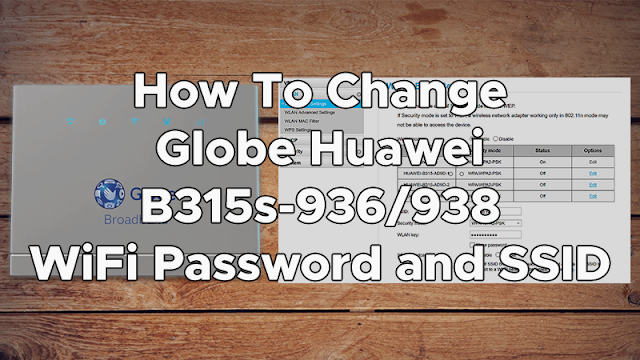
How To Change Globe Huawei B315s-936/938 WiFi Password and SSID

How To Change Globe Huawei B315s-936/938 WiFi Password and SSID

Globe Huawei B315s-936/938 router or modem is bundled free when you apply to any Globe Home Broadband Plans together with Globe LTE SIM. The modem's default WiFi SSID and password is usually printed at the back of modem. It connects to 3G/4G/LTE cellular networks with WiFi capability where you can connect your smartphones, tablet, laptop and other WiFi-enabled devices. You can also connect your PC through LAN cable.

If you are having hard time remembering the default WiFi password of your modem, you can change it through WiFi Settings or WLAN. Changing your wifi password regularly will help you to prevent unwanted access to your network. This will also ensure that your internet connection is fast and secure.

How To Change Globe Huawei B315s-936/938 WiFi Password and SSID

Below is the step-by-step tutorial on how to change the default WiFi password of your Globe 936 or 938 modem.
1. Connect to your router Globe B315s-936/938 (via Wi-Fi using the default credentials printed at the back of modem or connect directly thru LAN cable).
2. Open your web browser, and enter 192.168.254.254 in the URL address bar to open the Globe Broadband web interface/dashboard.
3. Click Login on the upper right of website interface.
Type the Globe default admin username and password. Username: user and Password: @l03e1t3
4. Open WiFi settings.
For 938 modem, go to Wi-Fi Settings
For 936 modem, go to Settings > WLAN > WLAN Basic Settings
Set the settings to:
SSID: Your Desired WiFi Name
Security mode: WPA/WPA2-PSK
WLAN Key/WPA Pre-shared key : "Your Desired WiFi Password"
SSID broadcast: optional settings if you want to set your wifi as public or hidden.
5. Click Apply and you are done.

Make sure to remember your new password as you need to input that again before you can reconnect to your Wi-Fi network with new SSID.

How To Reset Globe B315s-936/938 WiFi Username and Password to Default

If in case you forgot your wifi password, you can reset it to default. At the back of your modem, you can see a Reset button beside the power source. Using a pin or any sharp object, press it for 3-5 seconds and wait until it restarts. And you're done with the factory reset.

You can see the default WiFi SSID and password at back of your modem also, just look for SSID and WIFI KEY.

If you have any concerns regarding the tutorial on how to change Globe Huawei B315s-936/938 WiFi Password and SSID, you can leave your comment below.

Globe B315s-936/938 Modem Default Admin Username and Password

Globe B315s-936/938 Modem Default Admin Username and Password

Globe Telecom offers wireless broadband plans that comes with free Huawei B315s-936 or 938 modem router combo and landline. This modem uses cellular data like 3G, 4G/LTE, HSPA, etc., whichever signal type is available in your area and speed may vary depending on your signal reception.

Once your internet is active, you can connect your smartphones, tablet, laptop and other WiFi capable device to your network.

You can manage your WiFi network by accessing the router dashboard or web GUI using the default administrator password account. Open your browser (Chrome/Firefox) and go to URL address bar and enter 192.168.254.254, and then use the account information below.

Globe B315s-936/938 Default Admin Username and Password

Username: user
Password: @l03e1t3

Globe Tattoo Admin dashboard gives you access to the following important features and settings (936 and 938 settings may vary):
Home tab - Signal Type, Turn On/Off Data, Current Connection and WLAN status.
Statistics tab - Monitor download and upload stats.
SMS tab - Send and receive text message.
Settings tab - Change wifi password in WLAN menu and change admin password in System menu.
In 938 modem, these settings are separated, the WiFi Settings and Advance Settings.

Notes:
1. @l03e1t3 is paraphrased character of GLOBELTE. The first l is letter "L", while the rounded character is number zero “0” not letter “O”.
2. You can also see these credentials at the back of your modem.
3. This is not a full admin access.

How to Change the Default Password of Globe B315s-936/938 Admin Account

Upon logging in the default admin username and password, go to Advance/Settings > System > Modify Password. Enter the current password (which is the default password:@l03e1t3) and enter your desired password in the New Password field, make sure to achieve a middle to high password strength, and input it again on Confirm Password field. Lastly, click Apply to save changes.

How To Reset Globe B315s-936/938 Admin Username and Password to Default

At the back of your modem, you can see a Reset button beside the power source. Using a pin or any sharp object, press it for 3-5 seconds and wait until it restarts. And you're done with the factory reset, you're able to reset the default username and password of the router admin account.

See also: How To Change Globe Huawei B315s-936/938 WiFi Password and SSID

If you have an openline Globe Huawei B315s-936/938 Modem or even it's not yet unlocked, you can use it for free internet, like VPN, HTTP Injector and other tunneling apps.

For any concerns regarding Globe B315s-936/938 Modem Default Username and Password (Admin/User Account), you can leave your comment below.

Kamis, 03 Mei 2018

How to Pasaload in Globe or TM (Share-A-Load/Promo/MB Service)

How to Pasaload in Globe or TM (Share-A-Load/Promo/MB Service)

Globe's Share-A-Load/Promo/MB service lets Globe/TM subscribers transfer their prepaid load, promo or data to other Globe/TM subscriber. Globe Pasaload can be done in 3 different methods including text/SMS, via USSD code *143# or Globe/TM SIM Menu.

The Globe/TM Pasaload is a very convenient way in reloading your account when you ran out of load and Globe retailer or loading station is not available. After you've been pasaloaded, you can register to affordable Globe and TM Promos to enjoy variety of call, text and surf packages. To start sharing a load from one number to another number, just follow the pasaload tutorial below.

How to Pasaload in Globe or TM (Share-A-Load/Promo/MB Service)

Before we go to the pasaload procedure, it's good to know some information about Share-A-Load.

Load ValueFree TextLoad Validity
P1 - 1003 days
P11 - P50015 days
P51 - P100030 days
P101 - P150045 days
P300075 days
P5000120 days
*Share-A-Load senders can be Globe Postpaid/Globe Prepaid and TM subscribers.
*The amount of load transferred plus a P1.00 transaction fee will be deducted from the sender’s personal balance.
*P300 denomination is available to Globe Postpaid customers only.
*P500 denomination for Globe Postpaid will be temporarily unavailable until further notice.

What is the limit of amount that you can share and the number of share-a-load transactions that you can make?
If you're on Globe Prepaid or TM, you are allowed to send a maximum of 5 transactions per day, maximum of P150 per transaction.
If you're on Postpaid, you will be subject to a default credit limit of P500 regardless of Plan subscribed to.

Upon doing share-a-load, I got a validation message from 2652xxxxxxxxx. Is this a valid number? Should I reply to this?
Yes, that's a valid number. Just reply "YES" if you wish to proceed with your Share-A-Load transaction. You only have 5 minutes to reply. After which the transaction will be cancelled.

Now you know the important details, let's proceed to the pasaload procedure. You can choose one of the 3 options below in doing Globe/TM Share-A-Load/Promo/MB:

Globe/TM Share-A-Load via Text/SMS

To Share-A-Load without PIN (the easiest way to share a load without the need of PIN):
Text AMOUNT and send to 2+10 digit prepaid number of the recipient (replace the prefix 0 to 2)
Sample text format: 100 send to 29161234567

To Share-A-Load with PIN (a secure way of transferring a load from one number to other number with the use of PIN, just like a password):
Text AMOUNT PIN and send to 2+10 digit prepaid number of the recipient (replace the prefix 0 to 2)
Sample text format: 100 5555 send to 29161234567

To Share-A-Promo:
Text PROMOKEYWORD and send to 2+10 digit prepaid number of the recipient (replace the prefix 0 to 2)
Sample text format: GOSURF50 send to 29161234567
  • [message]
    • Available Promos to Share
      • For Globe/TM to Globe/TM: GOSURF10, GOSURF15, GOSURF30, GOSURF50, GOSURF299, GOSURF599, GOSURF999, SUPERSURF50, GOWATCH99
        For Globe to Globe only: All promos from Globe/TM to Globe/TM, GOUNLI25, GOUNLI95, ROAMSURF299, ROAMSURF399, ROAMSURF499, GOIDD200 (Prepaid Home WiFi: HOMESURF15, HOMESURF349, HOMESURF599)
        For TM to TM only: All promos from Globe/TM to Globe/TM, SULITXT5, A20, ASTIGFB10, ASTIGTXT10, ASTIGTXT15, ASTIGTXT30, ASTIGTXTALL, BAR_P5, BAR_TXT15, C10, C15, C20, CA15, CHATPLUS25, COC30, COC50, COMBO10, COMBO15, FB30, FB50, GOALL15
        Note: This list may subject to change without prior notice.

Globe/TM Share-A-Load via *143#

To access Globe/TM USSD code feature Share-A-Load/Promo/MB, just dial *143#, navigate My Account > Share-A-Load/Promo/MB > choose your desired share-a-load service:
1. Share Load w/o PIN > Enter amount 1-150 > Enter 10-digit number of recipient Ex. 917xxxxxxx > Send.
2. Share Load w/ PIN > Enter 4-digit PIN > Enter amount 1-150 > Enter 10-digit number of recipient Ex. 917xxxxxxx > Send.
3. Share Promo w/o PIN > then choose the network:
> Send to Globe Prepaid Number
> Send to TM Number
> Send to Tattoo Number
> Send to Prepaid WiFi Number
Then choose the promo you want to share. Next, Enter 10-digit number of recipient Ex. 917xxxxxxx and press Send.
4. Share Promo w/ PIN > Enter 4-digit PIN > then choose the network:
> Send to Globe Prepaid Number
> Send to TM Number
> Send to Tattoo Number
> Send to Prepaid WiFi Number
Then choose the promo you want to share. Next, Enter 10-digit number of recipient Ex. 917xxxxxxx and press Send.
5. Share MBs (GS SHARE) > Enter the number of MB you want to share (10MB to 30MB only), P5 per share. > Enter 10-digit number of recipient Ex. 917xxxxxxx > Send.

Wait for the confirmation message to proceed with the successful transaction.

Globe/TM Share-A-Load via SIM Menu

To access Globe or TM SIM Menu, just open your phone apps then find the SIM card icon or the app entitled SIM Toolkit. The Share-A-Load menu position may vary for old and new sims, just try to find Share-A-Load, it's usually on main interface, sometimes on PrepaidSvcs>CallTextSvcs.

After opening Share-A-Load menu, you can see the following options (may also vary depending on sim): Info, Share Load, PIN Settings, Register PIN. To start sharing your load, open Share Load > Enter the number of recipient > Enter the amount (1-150) > OK.

If there's no friend or family currently with you to do a pasaload, the Globe ask a load services will come in handy, the Emergency Text Service (GTSOS) and Loan Load/Utang Load. After you've borrowed load from Globe, you can now text your friend or family to pasaload you.

To get help on your concern for Globe and Touch Mobile Pasaload service, you can contact their Customer Service Hotline, for Globe just dial 211 and for TM just dial 808.

To share your experience with this Globe/TM Share-A-Load service, you can leave your comment below.

Senin, 30 April 2018

How To Unblock Smart Sim via *888, Works 100%

How To Unblock Smart Sim via *888, Works 100%

Did you experience enabling your mobile data in your phone with Smart Prepaid sim, the signal 3G/H+/HSPA+/4G/LTE is not showing or the icon with up and down arrow is not flashing and when you try to browse, your browser will show a "no internet connection" error. For USB dongle or Pocket WiFi users, when you try to connect to the dashboard, you'll be prompted for "redial connection". Well you're Smart sim might be blocked. The common reason for this is heavy downloading on your data plan or bypassing connection through VPNs or Proxies with almost 1.5GB-2GB of download. Because Smart has its Fair Usage Policy, a daily limit of 1.5GB.

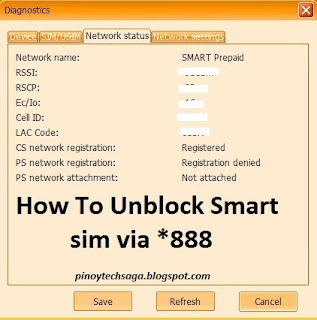
To verify that your Smart sim is really blocked, using a Smart or Openline USB Dongle, go to the dashboard, navigate Tool > Diagnostics > Network Status (the menu may vary depending on USB dongle model) and you will see the same like this:

Blocked Smart Sim in USB Dongle

Blocked Smart Sim Network Status:
PS network registration : Registration denied
PS network attachment : Not attached

The following are the previous solutions or OLD TRICKS of unblocking Smart Sim which DOESN'T WORK anymore today:

* The ROAM OFF Trick & other related tricks (Zero Balance required) [Status : Not Working]
ROAM ON send to 333
ROAM OFF send to 333
PROTECT ON send to 9999
SET send to 211

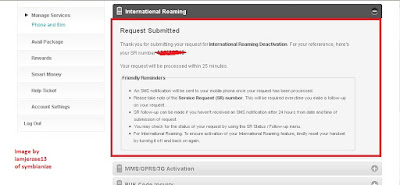
* The MySmart International Roaming Deactivation Trick (Internet connection required) [Status : Not Working]
1. Go to https://my.smart.com.ph
2. Register your number (the one that was blocked and you want to unblock).
3. Then go Phone & SIM option and select International Roaming.
4. Choose deactivate service, then submit.
mysmart unblock trick

The International Roaming module was already removed in mysmart account panel. This trick will work again anytime if Smart will re-enable this feature.

But don't worry, if there's a bad news there always a good news. You can still use your blocked Smart sim again and unblock it for free. The unblocking sim tutorial below will work 100%.

Do you prefer Unblocking Smart Sim thru Online? See my other post : How To Unblock Smart Sim via Smart Helpticket. But if you prefer using your phone only, just proceed with the procedure below.

How to Unblock Smart Sim, Prepaid, Jump-in, Kickstart and Bro via *888 (Also Works for TNT)

Requirements : Phone/Any Device with sim slot, Your Blocked Smart Sim preferably Zero Load Balance, Pen and Paper.

Procedure:
1. Insert your blocked Smart sim on your phone. Dial *888 and wait for the operator to speak. The following are the number sequence to get through their customer representative:
> press 1 for Smart Prepaid or Buddy
> press 1 for English / press 2 if you prefer Taglish / press 3 if you prefer Bisaya
> press 4 for Other concerns
Note: The number sequence may change when Smart updated their system or their ussd code, but the step-by-step process will likely be the same, so just remember it.

2. Then your call will be redirected to a Smart customer representative.
Tell your concern that you lost 3G/4G/HSPA+/LTE signal because when you're enabling your mobile data 3G/4G/HSPA+/LTE signal is not showing or flashing and when you try to browse, there's no internet connection. Don't tell them anything about 3rd party apps like vpn or proxy.

If the agent requires you to provide legal documents like Government ID and complaint letter, you can send it to Smart Facebook Page or whatever method the agent had told you, otherwise do the other recommended procedure in unblocking Smart SIM which is loading 100 pesos and texting ROAM OFF to 333, don't worry your load will not be deducted. But in case you didn't encounter scenario like this, the next step will be more likely the questions to be asked by the agent.

3. These are some of the following questions that the customer representative will ask, so be sure to prepare informations regarding to these questions:
> What is the number of your Sim that has problem?
> What is your Name?
> What is your location?
After asking your location, there are times that the Cust. Rep. will check first the status of cellsite tower on your location to check if its the cause of the problem. If the Cust. Rep. found out that the cellsite is not the problem, he/she will proceed on asking other infos below.
> What is the model of your phone?
> What is the date/time you've successfully connected to the internet?
> Website last accessed.
> What is the date/time you cannot connect to the internet?
After that, the Cust. Rep. will contact Smart Tech Supports to assist you on your concern and will ask the following:
> Our tech supports will contact or message you regarding the status of your concern, What is your available time?

4. After you gave all the vital informations, the Cust. Rep. will provide a SRN (Service Request Number) for you to be able to follow-up your concern, so PREPARE PEN AND PAPER to record your SRN.

5. Done! Just wait for 24-48 hours and you will receive a message that your connection is activated.

Optional 1: If you didn't receive any activation message within 24-48 hours, contact Smart Customer Service hotline *888 again. Below are the steps to follow-up your concern.
> press 1 for Smart Prepaid or Buddy
> press 1 for english / press 2 if you prefer Taglish / press 3 if you prefer Bisaya
> press 1 to follow-up your concern.
You'll be required to input your SRN (Service Request Number) which you recorded.
After that you'll be asked for same questions again.

Optional 2: If the unblocking sim via *888 doesn't really worked for you, choose one of these three alternative ways.
Option 1. Load 20 Pesos or above, and avail 20 Pesos and above price of Smart Internet Promos.
Option 2. Load 100 Pesos and text ROAM OFF to 333 (don't worry, the 100 Pesos load will not be deducted). If the keyword doesn't work for you. Try the other way around, which is by going to SIM SETTINGS > International > Roaming > Deactivate Text Roaming.
Option 3. Buy another Smart Prepaid Sim Card for 40-50 Pesos depending on the store price.
Option 4. Upgrade Smart SIM to LTE.

REMEMBER, To avoid being blocked again by Smart:
* Avoid downloading large files. As much as possible, your download limit must be 1GB below only.
* If you're using USB dongle on PC, try Netcut and set limit to automatically disconnect your connection when you reach the limit.
* If you're using smartphone, especially android, you can set a limit for mobile data usage, just go to Settings > Data Usage(Under Wireless and Networks) > Tap on "Set mobile data limit" > Adjust the red line to set a hard data-usage limit or Adjust the orange line to set an alert data-usage amount.
* Have an extra sim card and make a cycle of sim card replacements in your modem/phone at a timely manner.

How To Unblock Smart Sim Online via Smart HelpTicket

How To Unblock Smart Sim Online via Smart Helpticket
Blocked Smart sim usually can't connect to internet. The common reason for this is heavy downloading on your data plan or bypassing connection through excess usage of VPN or Proxy with almost 1.5GB-2GB of download. Because Smart has its Fair Usage Policy, a daily limit of 1.5GB for Prepaid users.

This post will tackle on online unblocking Smart sim via Smart Helpticket with the use of internet. If you prefer unblocking your Smart Sim using your cellphone, no internet required and for free, see my other post : How To Unblock Smart Sim via *888, Works 100%. But if you still prefer Smart Sim online unblocking method, you can proceed with the tutorial below.

How To Unblock Smart Sim, Prepaid, Jump-in, Kickstart and Bro via Smart Helpticket - Online Method

Requirements:
* PC / Laptop / Smartphone / Tablet with Internet connection used to access Smart Helpticket
* Your Blocked Smart sim inserted to phone/any device with sim slot

Procedure:
1. Go to https://help.smart.com.ph/helpticket/mysmart

Smart HelpTicket

On the 'Submit Ticket' tab, fill-in the following:
Full Name : Enter your full name
Email address : Enter a valid email address
What's your concern? : Select 'Network Connection'
Mobile Number : Enter your Blocked Smart Sim mobile number
Message :
It's up to you what problem you've encountered. But if you can't think of any concerns, you can just tell that you lost 3G/4G/HSPA+/LTE signal. When you're enabling your mobile data 3G/4G/HSPA+/LTE signal is not showing or flashing and when you try to browse, your browser returns an error that "there's no internet connection."

2. After that record your Help Ticket Number, in case you want to check the status of your helpticket.

3. That's it, there's an instances that a Smart Sim will unblock within 30 minutes upon submitting helpticket. But in case, your Smart sim is still blocked for 24 hours, just continue monitoring your Help Ticket Number in 'Check ticket status' tab. If Smart has emailed you and asked you some questions just like the following:
These are just sample questions and are not the actual questions. They might ask some of these questions. Just to give you a hint of what informations you need to prepare.
> What is the number of your Sim that has problem?
> What is your Name?
> What is your location?
> What is the model of your phone?
> What is the date/time you've successfully connected to the internet?
> What is the date/time you cannot connect to the internet?

Just cooperate with them until they will unblock your sim.

If the representative requires you to provide legal documents like Government ID and complaint letter, you can send it to Smart Facebook Page or whatever method the agent had told you, otherwise do the other recommended procedures in unblocking Smart SIM are the following: loading 100 pesos and texting ROAM OFF to 333, don't worry your load will not be deducted; or upgrading your Smart SIM to LTE.

REMEMBER: To avoid being blocked again by Smart:
* Avoid downloading large files. As much as possible, your download limit must be 1GB below only.
* If you're using USB dongle on PC, try Netcut and set limit to automatically disconnect your connection when you reach the limit.
* If you're using smartphone, especially android, you can set a limit for mobile data usage, just go to Settings > Data Usage(Under Wireless and Networks) > Tap on "Set mobile data limit" > Adjust the red line to set a hard data-usage limit or Adjust the orange line to set an alert data-usage amount.
* Have an extra sim card and make a cycle of sim card replacements in your modem/phone at a timely manner.

If you have any concerns in this unblocking Smart sim tutorial, you can leave your comment below.

Jumat, 06 April 2018

How To Know Your Own Mobile Number in Globe, TM, Smart, TNT or Sun

How To Know Your Own Mobile Number in Globe, TM, Smart, TNT or Sun


Memorizing our own mobile number seems to be the hardest part of owning a cell phone. In Philippines, Telecom Companies like Globe, TM, Smart, TNT and Sun provide 11-digit mobile number which is pretty long to memorize instantly especially when you have just bought a new sim card. And it's very hassle when you badly need to give your contact number to others or you need to reload your sim card.

Thankfully, there are more than a few simple ways to quickly look up your phone number even you are using old handset phone or a new smartphone like Android, iOS or Windows phone, and a sim card with load or even without load. Because in this tutorial, the methods on checking your sim card number are categorized by type of phone and load balance.

How To Know Your Mobile Number in Globe, TM, Smart, TNT or Sun Without Load (for Android, iOS and Windows Phone)


Android Phones

The process can vary from phone to phone, they are not all alike. The following method used is for Android Stock OS:
Go to Settings > About phone/device > Status. You might see the number listed here. If not, tap the SIM status to open another menu. Scroll down a bit here and you should see your number listed in My phone number. This might not work for some network or for old sim cards which will typically show Unknown. See other methods below.

iPhones (iOS)

Go to Settings > Phone and you should able to see your phone number displayed at the top of the screen.

Windows Phone

Open the Phone app > Tap on the three-dot icon in the bottom corner > Select Settings. At the top of the page, you will see your phone number.

How To Know Your Mobile Number in Globe, TM, Smart, TNT or Sun Without Load (for All Phones - Feature Phones and Smartphones)


Option 1: Contacting your Network Customer Service Hotline is usually free of charge. You can use this method to ask for your mobile number.
Globe Prepaid and Postpaid - dial 211
TM - dial 808
Smart Prepaid, Bro, Postpaid and TNT - dial *888
Sun Prepaid - dial 200
Sun Postpaid - dial 888
Sun Broadband - dial 333
ABS-CBN Mobile - dial 7878

Option 2: The other method is, you can ask your friend or family for your mobile number, your mobile number might be in their contact list.

Option 3: Remove your SIM card from your phone and check its back part. Usually, newer SIM cards have their card number embedded on the back of the card.

Option 4 (For Globe): You can use Globe's Text mo Libre ko feature. To start with, just send any text message to 2354+the recipient Globe number.

Sample format: text Hello and send to 235409171234567

The recipient will then receive a text message coming from you. From there, you should able to see your SIM card number.

Option 5 (For Sun Cellular): Just dial *#99# or *99# and press SEND/CALL. A popup menu will display your mobile number.

How To Know Your Mobile Number in Globe, TM, Smart, TNT or Sun With Load (for All Phones - Feature Phones and Smartphones)


If you have at least 1 PHP load remaining, just send any message to your friend's phone and ask him/her to read your phone number back to you from the inbox. If you don't have remaining load balance, you can borrow load via Globe Loan Load/TM Utang Load or Smart SOS Load services.

This is probably the best method to know your own mobile number, may it be Globe, TM, Smart, TNT, Sun, Cherry Prepaid or ABS-CBN Mobile.

So that's it, following these methods will surely solve your question: how to know my mobile number in Globe, TM, Smart, TNT or Sun?

If you need to know also the network of your SIM, see this Complete List of Mobile Number Prefixes and find its first 4 digit in the list to determine its network.

Do you have other methods in knowing your own number aside from the methods listed above? You can share it by leaving your comment below. Thanks for reading!