Tampilkan postingan dengan label Game Tips. Tampilkan semua postingan

Rabu, 30 Mei 2018

How To Lower Your Ping in Online Games (Lag free Gaming in Philippines)

How To Lower Your Ping in Online Games (Lag free Gaming in Philippines)

Are you sick of suffering lag in online games? You need to check your ping. What is Ping? Ping refers to the number of milliseconds it takes for a real-life action like pressing a button or moving the mouse, to register in the game server you're using. In Philippines, most gamers lose to their favorite online games due to high ping. Reducing ping or latency in-game will improve online gameplay. Below is a simple guide on how to lower your ping thus experience lag free gaming.

1. Move closer to the router

Move closer to the router

If you are using a WiFi connection (which is built-in on laptops while desktops uses USB WiFi Adapters), decreasing the space between your gaming device and your router will increase your internet connection strength, which will in turn decrease your ping.
While this step isn't likely to fix your ping issues entirely, it's a good rule of thumb.
Items such as walls, floors, and other physical obstacles will obstruct your wireless signal.

2. Close any background programs and websites (Disable Windows Updates)

Close any background programs and websites

Having bandwidth-heavy programs like browser with YouTube/other video streaming site opened, torrenting services like uTorrent or BitTorrent, and even other games running will severely affect your ping. This applies to background programs and websites on all devices, not just the one on which you're gaming.

If you have any background downloads, pause or close them. To verify if unnecessary programs were totally closed, open Task Manager by pressing Ctrl+Alt+Delete. Disabling program or windows updates will also reduce your ping. To disable windows updates for Windows 7, Click Start > Control Panel > System and Security > Turn automatic updating on or off then select off. For Windows 8, press Windows+F hotkeys > type windows update > choose Settings > Click Turn automatic updating on or off > Never check for updates. The only possible way to disable windows update for Windows 10 is by setting your wireless connection into Metered Connection, click the wireless network icon is the bottom right corner of taskbar, find your WiFi and click Properties, look for 'Set as metered connection' and turn it on.

Non-Internet-based programs won't affect your ping, though they may affect your game's performance. So it is also recommended to close them to achieve maximum gaming performance.

3. Reduce the number of devices using WiFi

Reduce the number of devices using WiFi

Routers and Internet connections can only support limited number of devices, and each in-use device (like PC, laptop, smartphones, PSP handheld console, wireless printer) will divide the available connection speed, which will also increase your ping.

If you live with multiple people, this might be impossible. The next-best thing is using an Ethernet connection (Refer to tip no. 4).

Consider putting your mobile devices in Airplane Mode while you game, since doing so will pull them off of the WiFi network without forcing you to use cellular data.

4. Connect your device to your router via Ethernet cable

Connect your device to your router via Ethernet cable

As long as the router isn't the problem, your ping will almost always be lower on a wired connection (RJ45 cable connected to LAN port) than on a wireless one.

If this doesn't lower your ping, your router is most likely causing your low ping or the internet connection coming directly from your ISP could be to blame.

5. Use a bandwidth manager

Use a bandwidth manager

There are so many bandwidth management softwares in the market, but most of them are paid software. If you don't have enough budget to purchase one, here's some of the free bandwidth management softwares: NetLimiter, NetBalancer, TMeter, NetPeeker, NetWorx, if you are using ASRock motherboard, try cFosSpeed (ASRock XFast LAN).

There are also other type of ping reducing software optimized for gaming networks, they are what they called GPN (Gamers Private Network), most of these softwares are also paid, if you have budget, you can try wtfast or Kill Ping. GPN is a platform that online gamers use to access gaming servers with an uninterrupted connection. The purpose of GPN was to provide online gamers an environment that is free from ping spikes and lag issues. To explain further, GPN has their own network dedicated for game data wherein installing several servers across the globe. On a regular internet connection there are all sorts of data packets travelling in the network causing a traffic jam for data and packet loss. GPN dedicated route allows a gamer to beat the clutter and traffic, enabling the game data to travel faster to the game server reducing high ping, eliminating lag and packet loss.

6. Restart your router and modem

Restart your router and modem

If your router or modem has been running non-stop, it may not be functioning properly. Removing the power cables from both the modem and the router, waiting thirty seconds or so, and then re-attaching them will refresh your internet connection and potentially lower your ping.

It may take a few moments for your network to come back online after plugging the router in.

7. Call your Internet Service Provider's customer service line

Call your Internet Service Provider's customer service line

Before taking action toward replacing your router, call your ISP to make them aware of your latency issues. They may have a less expensive answer for you.

See customer service hotline number of PLDT, Smart or Globe, to contact them and get solution to your internet problems.

This is easier and cheaper than replacing your router, which is the logical next step.

8. Replace your router

Replace your router

Especially if your router and/or modem is more than a few years old, replacing your unit will have a noticeable effect on your internet connection strength, speed, and consistency. Similarly, your ping will also likely go down when you install a new router.

Be sure to research your router thoroughly before purchasing it.

You may want to invest a little extra in a gaming-specific router, especially if you game with multiple people on the same network at once.

9. Upgrade your Internet package

Upgrade your Internet package

Unfortunately, if nothing else has helped decrease your ping, you'll have to select an Internet package with higher upload and download speeds from your ISP.

ISPs often have year-long deals on specific plans. If your current ISP isn't working for you, you might consider switching ISPs entirely.

Many Internet providers have a "Gamer" package with increased upload and download speeds.

The most recommended type of internet that offers fast internet speed and low ping is fiber internet connection, like Converge ICT FiberX, PLDT Fibr, Globe Fiber and Sky Broadband Fiber.

After you've done some of these steps, check your ping again by visiting speedtest.net. If you get less than 100ms ping, you're about to have a smooth gameplay. If you get a consistent 1ms ping, which is the lowest ping, you will surely have the best online gameplay experience.

What can you say about this tutorial on how to lower your ping? Let us know your thoughts by leaving a comment below.

Sources: 1, 2

Kamis, 19 April 2018

Play DOTA 2 Offline Without Steam Using RevLoader

Play DOTA 2 Offline Without Steam Using RevLoader

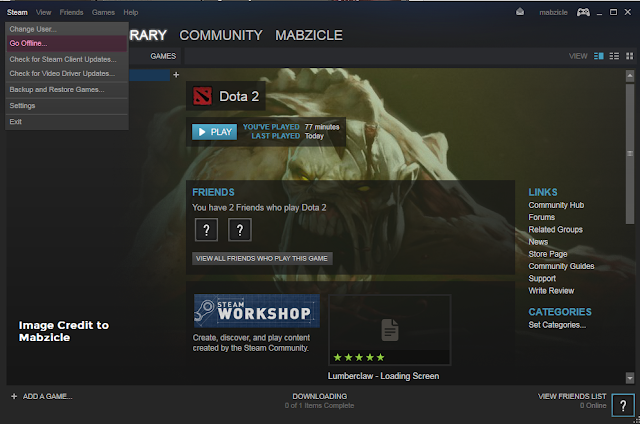
The common tutorials on how to play DOTA 2 especially the latest DOTA 2 Reborn in offline mode still requires internet connection on first step because you need to login your account in Steam client to access the 'Go Offline' mode. And this is hassle for some who are eager to play DOTA without internet.

Below is the typical DOTA 2 'Go Offline' Steam method which requires you to login your Steam account then after logging in, you can disconnect your internet and click the 'Go Offline' in the Steam menu.

DOTA 2 Go Offline Steam Method

In this post, you will surely play DOTA 2 offline, no internet required and no Steam login required perfect for players with slow internet connection, volume based internet or no internet connect at all. Using RevLoader, you can play DOTA 2 Reborn AI mode and DOTA 2 Reborn custom maps/custom games from Valve including Overthrow, Dota 10v10 and Colosseum, as well as from Community-creations including Roshpit Champions, Angel Arena Reborn, Angel Arena Black Star, Memes Reborn, Spin TD, Guarding Athena, Skillshot Wars, Attack on Hero, Battleships, Crumbling Island Arena, Custom Hero Survival, Dota IMBA, X Hero Siege: Reborn, Epic Boss Fight, Gem TD, Legends of Dota, Legends of Dota: Redux, Life In Arena, Naval Warfare, Pimp My Peon, Warlock Brawl, Legion TD Reborn, Horde Mode, Wraith Night: Expansion, Warchasers, Tree Tag, Survival Co-op, SF Wars, Retro Dota, Reflex, Pudge Wars, Invoker Wars, Dota Strikers, Enfos Team Survival, Adventure Mode, Quadroside, Footmen Frenzy, Capture Points and many more.

But wait there's more, you can also use all items including arcanas, immortals, sets, terrains, weather effects, cursors, announcer packs and others.

Here's how to play DOTA 2 Reborn offline without logging in to Steam using RevLoader.
  • [message]
    • Note
      • Before proceeding, make a backup of your DOTA 2 and disable your antivirus too.
Requirements:
* PC or Laptop (Windows OS, and met the minimum hardware requirements, Processor: Dual core from Intel or AMD at 2.8 GHz, Memory: 4 GB RAM, Graphics: nVidia GeForce 8600/9600GT, ATI/AMD Radeon HD2600/3600, DirectX: Version 9.0c)
* Updated DOTA 2 Reborn-Steam Version or Download DOTA 2 offline direct links : Part 1 | Part 2 | Part 3 | Part 4 | Part 5 | Part 6 - DOTA 2 Steam April 2018 Client - Rar password: www.par30dl.com
* Download Dota 2 v7.0 RevLoader (for DOTA 2 v7.0 below) | Dota 2 RevLoader 2018 - patch 2632, patch 2657
(ONLY USE THE LATEST STEAMCLIENT.DLL FIX PLUS LOADER on UPDATED DOTA 2 V7.0)
1. Update fix for Dota 2 v7.0 (Monkey King)
2. Latest update steamclient.dll fix
3. Latest update item.bin
4. plus Offline Launcher
+ can change name
+ auto update HOSTIP
* (Optional, if you want to play Custom Game) Download GCFscape
GCFscape Runtimes: Skip this if you already have them installed on your computer.
Microsoft .NET Framework
Microsoft Visual C++ 2010 SP1 Runtime (x86-for 32bit PC)
Microsoft Visual C++ 2010 SP1 Runtime (x64-for 64bit PC)

Play DOTA 2 offline without Steam login:
1. [Optional Step, skip this if you have already DOTA 2 Installed]
Install DOTA 2 Reborn, update the latest patch and download Custom Maps also, but for now the recommended version is 7.0.
If you have slow internet connection, just ask a friend or computer shop staff acquaintance for a copy of DOTA 2 Reborn. You need a flash drive or an external drive with atleast 32GB of data capacity, NTFS format.
You can copy DOTA 2 Reborn from another PC by doing this step:
Right click DOTA 2 icon on the desktop > select "Open File Location" > on the address bar above, click the previous folder > then copy now the folder commonly named as Steam.
DOTA 2 Reborn has approximately 14-16GB of total size. If the size is over 14-16GB, you can safely delete the DOTA 2 Reborn replays first which can usually found in "Steam\SteamApps\common\dota 2 beta\game\dota\replays\".
2. Download DOTA 2 Reborn RevLoader from the Requirements above, extract the files to this directory "Steam\SteamApps\common\dota 2 beta\game\bin\win32". For example : D:\games\Steam\SteamApps\common\dota 2 beta\game\bin\win32
3. In that directory, locate revLoader.exe, right click and select > Send to > Desktop (create shortcut). Go to your desktop and double click the revLoader.
4. Done! you are now able to play DOTA 2 offline directly without the need to login to Steam. For Solo Gamers, just create a Practice Match with AI bots, select solo and the difficulty of the bots.
Tips!
* Change In-Game Name and Language - In the directory where you extracted revLoader, locate rev.ini, you can change these lines, Language = English and PlayerName = YourDesiredUserName
* 'Need to update game' error
Update your Steam first using internet then copy the updated "steam.inf"
from
Steam\SteamApps\common\dota2beta\game\dota
and paste it to
Steam\SteamApps\common\dota2beta\game\bin\win32\dota

Play DOTA 2 offline on LAN as host:
Open console by pressing the backslash key "\" (without the double quotes), in the game lobby.
Here are the commands:
dota_bot_set_difficulty 3 (you can set it from 0 to 3 , 3=Unfair, 2=Hard, 1=Medium, 0=Easy)
dota_wait_for_players_to_load 1
dota_wait_for_players_to_load_timeout 120 (120 is time in seconds, you can change it)
map dota (to create map)
dota_bot_populate (to fill the empty slot with bot/AI) Skip this if you will play with another player.

If the console doesn't appear or the revloader gives error, try this following possible solution:
- Go to your Dota 2 installation directory where revload rev.ini located. "...Steam\SteamApps\common\dota 2 beta\game\bin\win32"
- Edit the REV.INI using Notepad.
- Find the string that contains this line: ProcName=dota2.exe -steam -silent /help
- Replace that line with this: ProcName=dota2.exe -console -steam -appid 570 -novid -silent /help

How to Connect to LAN host:
connect 192.168.1.100 (Change this IP to the IP of the LAN host. To see the IP, on windows, press Windows Button+R, this will open the run command, then type ipconfig and press Enter. You'll see a bunch of information, but the line you want to look for is "IPv4 Address.")
jointeam good or bad (good is for Radiant faction, bad is for Dire faction)

How to play DOTA 2 Reborn Custom Maps/Custom Games in offline mode:
  • [message]
    • Note
      • Before proceeding, you must have downloaded DOTA 2 Reborn Custom Maps first.
1. Locate custom maps directory in "Steam\SteamApps\workshop\content\570". Use 'search' in the top right of the window then type "publish_data" (without the quotes), it will show you many results of publish_data.txt, open one of it and you will see the name of the custom map, right click your chosen publish_data.txt and click 'Open File Location'.
For example : I have opened publish_data.txt that contains 'Overthrow' then 'Open File Location' I found 455312245.vpk. And that vpk is what we need to extract using GCFScape.
2. Go to "Steam\SteamApps\common\dota 2 beta\game\dota_addons" then create new Folder.
For example : I will create a folder named 'Overthrow' then open GCFScape.exe, select and open 455312245.vpk then extract it to "Steam\SteamApps\common\dota 2 beta\game\dota_addons\Overthrow"
3. After extracting, open DOTA 2 using revLoader.exe, in console, type:
dota_launch_custom_game example
Which will look like this when I open my custom game 'Overthrow'
dota_launch_custom_game overthrow
4. Done! Enjoy playing DOTA 2 Reborn Custom Maps or Custom Games in offline mode, absolutely no internet required.

Frequently Asked Questions on DOTA 2 RevLoader:

1. It shows "Steam validation rejected" when I start bot games/join games
- Close Dota 2, turn off UAC, and run again (alternatively you can just right-click revLoader.exe in your Dota 2 folder and select "Run as Administrator")

2. Can I use this in public/ranked matchmaking?
- You CANNOT use it on legit Dota 2 servers. In the first place, you're unable to join in them.

3. Will this be usable forever?
- No, therefore we must wait for an updated version when revLoader doesn't work properly.

4. It always shows "Connecting to the Dota 2 network"
- Right-click revLoader.exe and select "Run as administrator". Alternatively, right-click, select Properties. Under the "Compatibility" tab, check "Run this program as Administrator", apply and press OK.

If you have any comments regarding this tutorial, you can leave them below. Thanks for reading!

Credits:
Original Image Source - goodfon
Tutorial - abno456 of Mobilarian (Symbianize)
DOTA 2 RevLoader Tool - bir3yk, revCrew and mr.crack
FAQ - ZZkirk of playdota
DOTA 2 offline links - par30dl